
HubSpot Salesforce integration: how the sync works and how to fix errors and suspensions
A HubSpot and Salesforce integration can be connected while the customer record your team needs is missing, stale or wrong. Troubleshoot the specific record, field and direction. Check eligibility, matching, ownership, the attempted write and the receiving system's response before starting a bulk resync. Otherwise, you can replay the same error across thousands of records.
On this page
This guide covers the native HubSpot-Salesforce integration. A custom API job, middleware connector or Smart Transfer migration has its own rules. Establish which path produced the failure before applying instructions from a different integration.
What should the integration have done for this record?
Define the expected record, field, direction and deadline before retrying. Start with one failed business outcome: a qualified lead did not reach its owner, an account update disappeared or a closed opportunity still appears open in marketing's view.
Record the HubSpot ID, Salesforce ID, source object, destination object, field, direction, expected value and time of the change. Preserve the exact error text. A screenshot of two different values is useful evidence, but it does not tell you which value should win.
Use an incident record like this illustrative example. These are planning fields and fictional IDs, not a connector configuration or an actual incident:
incident_id: sync-review-001
object_pair: HubSpot contact to Salesforce lead
hubspot_record_id: sample-contact-104
salesforce_record_id: sample-lead-208
field: qualification_status
source_change_at_utc: "2026-10-13T09:00:00Z"
expected_destination_value: ready_for_sales
observed_destination_value: under_review
eligibility_at_change: confirmed
mapping_rule: inspect_actual_setting
exact_error: capture_from_sync_health
business_owner: revenue_operations
repair_scope: one_representative_record
If you cannot identify the authoritative value, stop the resync decision and resolve ownership. Sending data faster will not settle a disagreement about what the field means.
Our HubSpot and Salesforce integration support starts with those ownership and acceptance rules. The lead routing guide separates qualification, assignment and acceptance. Use that distinction when a “sync problem” is actually a handoff with no clear owner.
When the disputed field is lifecycle stage, start with the HubSpot lifecycle transition rules and assign one owner before changing sync behavior.
What should you check first when records stop syncing?
First distinguish a connection-wide suspension from a record-level failure or an update that was never triggered. Use this order before changing permissions or launching a bulk resync.
- Open Salesforce under HubSpot's connected apps and inspect any suspension message.
- Inspect Sync Health for the exact record-level error.
- Compare recent API use with the allocation and recovery workload.
- Verify the connected identity and object configuration.
- Check inclusion and selective-sync eligibility at the time of the change.
- Confirm the field's write direction and whether an update triggered sync.
Keep a small set of representative records: one failing, one working and one deliberately excluded. This prevents a repair that restores the first record by opening access to everything else.
How do you clear an integration suspension?
When the HubSpot Salesforce integration is suspended, records may stop syncing between the two systems until the suspension is cleared. Fix the reported cause, then follow the matching remedy in HubSpot's suspension reference. Its eleven documented conditions are summarised below, and the sections after the table explain what each error means and how to clear it.
| Area | Condition | Documented recovery |
|---|---|---|
| API | Salesforce organisation budget exhausted | Capacity must return |
| API | HubSpot allocation exhausted | Review allocation; resumes with capacity |
| Access | API disabled | Correct API Enabled; reauthenticate |
| Access | Object permissions missing | Check permission set and related-object read/edit |
| Access | Field permissions missing | Correct field and lookup-related access |
| Salesforce | Organisation locked | Clear; escalate persistent lock |
| Salesforce | Storage exhausted | Review retention before cleanup |
| Salesforce | Organisation unavailable | Check service status |
| Salesforce | Server failure | Clear; inspect status or support |
| Configuration | Mappings absent | Clear; escalate missing standard mappings |
| Unclassified | Unknown failure | Clear; escalate if persistent |
Use Clear Suspension where the remedy calls for it, and check the backlog and destination state after recovery. Enable suspension email notifications too: open Settings → Notifications and turn on email for the system notification HubSpot sends when your Salesforce integration is paused or has a sync error. User notification settings.
Preserve the message, failing operation and time before changing configuration. For storage errors, assess retention, associations and backups instead of bulk-deleting business records merely to restart a connector. For permissions, ask the Salesforce administrator to review the specific required operation; do not widen organisation-wide sharing to repair one record.
After recovery, send one representative update, confirm the destination value and relationships, then inspect the remaining queue. If the same suspension returns, stop repeating the clear action and investigate its cause. Log each suspension with its error name, start time and the changes made in either system that day, so a repeat can be traced to its cause.
API limit suspensions
HubSpot suspends the integration when the Salesforce API limit is exceeded or when HubSpot's own allocation of those calls runs out. The integration can still look connected while HubSpot cannot read Salesforce data: fields may not load, workflow and sync errors can appear, campaign membership on synced contacts and leads can go stale and records such as leads may not be created. Use the Salesforce API capacity and recovery guide to identify other consumers and preserve a budget for critical work.
- Salesforce Organization API Limit Exceeded: the Salesforce organisation has used its API call limit, so Salesforce rejects further requests. Syncing typically resumes when the limit resets or more capacity is added. To prevent a repeat, set the allocation HubSpot may use, and ask Salesforce support for a temporary increase before a migration.
- HubSpot API Limit Exceeded: HubSpot has used the allocation set for it. If the organisation has calls to spare, raise the allocation in HubSpot; otherwise the suspension clears automatically once calls are available. The limit applies to a rolling 24-hour window, not a calendar day.
To see and change the allocation, open Settings → Integrations → Connected Apps → Salesforce, then Sync Health on the Data sync tab. API call use shows HubSpot's calls in the last 24 hours, Limited by Salesforce the organisation's total and Allocated to HubSpot the share you can edit. Before a bulk resync, compare that allocation with the calls the resync needs. API call settings
Access and permission suspensions
Three suspensions mean the Salesforce integration user cannot do what the sync asks. Fix each one in Salesforce, on that user's profile or permission sets.
- Salesforce Organization API Access Disabled: the integration user lacks API access. Give the user's profile the API Enabled permission, then re-enter the Salesforce user credentials in HubSpot to clear the suspension.
- Salesforce Object Permissions Missing: the user lacks the HubSpot Integration permission set, or Read and Edit on an object being synced. Assign the permission set and grant Read and Edit on the object. If both are in place, check related objects reached by lookup; the integration typically needs Leads, Contacts, Accounts, Opportunities, Campaigns, Tasks and Users.
- Salesforce Field Permissions Missing: the user lacks Read and Edit on a field of the syncing object, or on a field of a related object reached by lookup. Grant Read and Edit on that field.
These are the connection-wide form of the record-level permission errors, and the same rule applies: grant the permission the error names and nothing broader.
Salesforce-side suspensions
Four suspensions start inside Salesforce, so confirm Salesforce's own state before changing anything in HubSpot.
- Salesforce Organization Locked: a temporary lock while another action in Salesforce finishes. Click Clear Suspension; if the error persists, ask your Salesforce system administrator to unlock the organisation.
- Salesforce Organization Storage Limits Exceeded: the organisation has used its storage. HubSpot's documented fix is to bulk-delete HubSpot records from Salesforce, so agree what must be kept before anything is deleted.
- Salesforce Organization Unavailable: Salesforce is having an outage. Check Salesforce Status for updates on availability.
- Salesforce.com Server Error: Salesforce returned an unknown error. Click Clear Suspension; if it returns, check Salesforce Status or contact Salesforce support.
Configuration suspensions and unknown errors
Two suspensions point at the integration's own configuration or at an error HubSpot cannot classify.
- Missing Field Mappings: no mappings exist between HubSpot properties and Salesforce fields. Click Clear Suspension, and contact HubSpot Support if the error persists or the integration settings show no standard field mappings.
- Unknown Error: Salesforce sent an error HubSpot does not recognise. These are rare and often resolve themselves. Click Clear Suspension, and contact HubSpot Support if it persists.
Which connection requirements and object settings matter?
Confirm subscription, edition, identity and object settings first. The installation guide lists these standard requirements; selective-sync designs can differ.
| Requirement | Documented baseline | Scope to confirm |
|---|---|---|
| HubSpot access | Eligible Professional or Enterprise subscription; Account Access permission | Check the supported product list and connecting user |
| Salesforce edition | API-enabled edition or Salesforce Professional; Government Cloud supported; Group unsupported | Do not assume the same API packaging for every edition |
| Connected user | Salesforce system administrator; API Enabled and View Setup and Configuration | Modify All on objects to be synced |
| Installation/embedded view | Download AppExchange Packages; visible Task Type | Customize Application for Embed installation/updates; conditional Modify Metadata for Embed and deal sync |
One HubSpot account connects to one Salesforce instance; setup alone does not bulk-sync existing records. The legacy Visualforce managed package is being deprecated in favour of HubSpot Embed. Confirm Salesforce edition and API costs before committing to a design, and distinguish a vendor-required connector permission from unnecessary access granted elsewhere.
Verify the connected organisation, production versus sandbox, enabled object, creation behaviour and last successful sync. A record in a test Salesforce organisation cannot reconcile with a production record merely because the company names match.
Inspect the object version too. HubSpot's newer company sync adds controls that older company configurations do not have, including an Always use HubSpot field rule and configurable association direction. Object-level one-way direction takes precedence over field rules. Current company-sync behaviour.
Do not describe all objects as having identical options. Document contacts, companies, deals, activities and custom objects separately, including the controls actually available in your account.
Should Smart Transfer run alongside the integration?
No. HubSpot warns that Smart Transfer and the native integration match records using different identifiers, so simultaneous use creates duplicates in both systems. Turn off the Smart Transfer sync connections before enabling the integration; when it is already active, use its supported Salesforce import for additional records. The Salesforce-to-HubSpot migration guide covers the one-time cutover decision.
How does Salesforce custom-object sync differ by programme?
Check your contract and portal before promising a direction. Standard documentation lists Enterprise and configurable two-way mappings; the separate flexible seats-and-credits supplement lists a one-way Salesforce-to-HubSpot capability on Professional and Enterprise. Those are different packaging statements, not permission to assume every Professional account supports two-way custom objects.
| Product scope | Published entitlement | Direction boundary |
|---|---|---|
| Standard custom-object sync documentation | Listed Enterprise subscriptions | Two-way, Salesforce-owned or HubSpot-owned field rules; association directions configured separately |
| Flexible seats-and-credits supplement | Programme-specific Professional and Enterprise | Describes one-way Salesforce to HubSpot; legacy programme packaging can differ |
Create the matching HubSpot custom object first. In Salesforce's integration settings, select Data sync, start a custom-object sync and pair the objects. Review update/delete behaviour and the conflict rule, then select associations and map required fields. Preview before enabling continual sync; import existing records separately when needed.
Salesforce lookup fields on custom objects cannot be mapped as ordinary fields; represent supported relationships through associations. Associated objects must already sync, and the custom object cannot associate through both Salesforce leads and contacts in this setup. Test one parent/child pair before importing history.
Keep record direction, field precedence and association direction as separate entries in the implementation record. A field-rule menu is not evidence that your contract or object-level configuration allows the reverse direction. Have HubSpot confirm any discrepancy before you enable writes.
What does an inclusion segment actually control?
An inclusion segment sets HubSpot-to-Salesforce eligibility. It must be active. Selecting it does not bulk-sync its existing membership. Configured Salesforce creation and first-pairing behaviour can still create or update records before membership controls ongoing updates; a changed pairing can be treated as an initial sync. Membership removal can also race with an update. Inclusion-segment rules.
Treat this as an operational filter, not a hard security boundary or a promise that data can never travel in the other direction.
For an original design example, suppose sales should receive contacts with a verified business email, an accepted qualification state and a supported region. Give each condition a defined property and owner. Then test four records: one eligible, one missing the email, one still under review and one outside the supported region.
Check membership at the time of the attempted sync. A contact that qualifies now may not have qualified when the change occurred. Retain enough event or property history to distinguish a delayed qualification from a failed write.
Avoid circular criteria. If inclusion requires a Salesforce value that can only arrive after the initial sync, the workflow may never reach the state you intended. Use a condition that the source can establish, or deliberately stage the first transfer and its later eligibility evaluation.
For Salesforce-to-HubSpot filtering, current object settings support selective-sync filters for companies on the new sync, tickets, activities and custom objects. Leads and contacts may require a different design. HubSpot's separate permissions-based selective-sync guide describes controlling the integration user's record access and requires specialist Salesforce configuration. Object filters, permissions-based approach.
Do not change organisation-wide sharing to repair one missing lead without assessing who else gains or loses access. Have the Salesforce administrator verify both an allowed record and an intentionally excluded record.
Which system should own each field?
Write the business rule before choosing a sync rule. “Salesforce owns sales stage” is meaningful only if the team also stops other automations from rewriting that stage elsewhere.
Select a mapping after agreeing the field's authoritative writer. HubSpot's mapping guide documents these standard behaviours:
| Rule | When HubSpot can write to Salesforce | Blank or change behaviour |
|---|---|---|
| Prefer Salesforce unless blank | When Salesforce is empty | Salesforce values, including later clearing, can replace HubSpot values |
| Always use Salesforce | Never for this mapped field | Salesforce clearing also clears HubSpot |
| Two-way | Either side can supply an update | Latest value wins; clearing propagates |
| Don't sync | No mapped transfer | Clearing stays local |
Owner mapping is two-way even if a preference label appears. New mappings do not backfill automatically. On a first sync without prior field history, Salesforce's current value can establish the baseline and overwrite a newer HubSpot value, depending on the rule. Record these exceptions in the field ownership contract.
For each business field, record:
- Its definition and responsible team.
- The system allowed to originate a change.
- The chosen mapping and any object-level override.
- What an empty value means and whether clearing it should propagate.
- The behaviour during initial pairing and later updates.
- Every workflow, import or user process that can write to it.
Consider an illustrative sales-stage field. Salesforce changes it to “Meeting scheduled”; a HubSpot workflow later writes “Qualified” based on an old score. Under an arrangement that accepts the later write, the customer appears to move backwards even though both systems successfully processed their instructions.
Repair the competing writers. Decide whether the marketing qualification state needs its own property instead of sharing the sales-stage field. A single overloaded field can make two teams fight over values that describe different parts of the journey.
If warehouse-derived scores also write to Salesforce, include that integration in the same ownership review; the warehouse model and CRM mapping need the same field contract.
For HubSpot-owned contact data, do not invent a standard Always use HubSpot option because the newer company sync has one. Check the actual object's supported configuration and whether a separate, explicitly controlled integration is needed.
Did the change actually trigger a sync?
Check a qualifying trigger before treating an unchanged destination as a rejected write. A correct mapping does not prove the connector has processed the latest change. HubSpot documents eligible creation, ownership and mapped-value events that trigger sync. A Salesforce formula recalculation alone does not trigger one; a change to a mapped input field can. Import and trigger behaviour.
Build a timeline for the representative record: source change, eligibility, queued or attempted sync, error, retry and destination value. If the only thing that changed was a computed result, investigate the trigger before editing permissions.
Use the record's supported resync action only after you know the expected outcome. Confirm that the destination changed correctly and remained correct after other automation ran. An immediate success followed by a reversal is a different failure from an update that never arrived.
Which record-level errors should you investigate?
Classify the failed operation before changing the record. Use the exact record-level error to choose the relevant investigation below. HubSpot's Sync Health view provides error groups, affected records and exportable details. Use the exact record-level message to select the next check. Sync Health and error reference.
1. The connected user cannot perform the operation
A permission error can concern an object, field, record or attempted association. Inspect the operation that failed: reading the account, creating the lead or changing a particular field are different requests.
Check effective access for the integration identity, not the administrator looking at the screen. Salesforce recommends dedicated integration access shaped through permissions and tested against the provider's needs. That general guidance does not establish that every API-only licence fits HubSpot's native connector. Salesforce integration-user guidance.
A useful repair record says which operation was missing, which approved permission provides it and how an excluded record remains excluded. Test the smallest representative change. Keep the access decision visible to the administrator responsible for the organisation.
If selective sync deliberately hides the record, the missing access may be correct. Reclassify the record's business eligibility before expanding access.
2. A picklist value is incompatible
Compare the transmitted internal value with the allowed value, not just the labels a user sees. Country and state combinations, inactive stages and owner values can create related failures. HubSpot's error reference identifies these as separate cases.
Salesforce restricted picklists prevent integrations from adding arbitrary values. That is a data-quality control worth preserving where the business needs it. Salesforce picklist guidance.
For a fictional example, one system uses the internal code ready_for_sales and another expects sales_ready. Agree on the intended mapping or source value. Do not add every misspelling to the destination just to empty the error queue.
Inspect the failing record's context and active options, make one controlled correction and retry it. Then fix the form, import or workflow generating the incompatible value. Repairing stored values without fixing their producer leaves a recurring incident.
3. A validation rule or automation rejects the write
HubSpot identifies Salesforce validation, Flow and automation failures in its error categories. The receiving system can reject a technically valid field update because the business record is incomplete.
Salesforce validation rules can make one field required conditionally on another. Conditional required-field example.
Imagine a qualification update that requires a verified company identifier. The source sends the qualification first, while the identifier is due in a later operation. Repeatedly retrying the first write reproduces the same missing prerequisite.
Have the admin inspect the exact rule or failed automation, then determine whether the source omitted required information, the update sequence is wrong or the rule does not represent the intended process. Test the corrected transition with both complete and incomplete records.
Keep valid controls intact. A global bypass can turn a visible sync error into quietly invalid pipeline data. The Salesforce automation guide covers the surrounding implementation checks.
4. Identity or duplicate rules block the record
Salesforce applies duplicate rules during record creation, updates and upserts. Its API documentation describes these checks; it does not imply that the native HubSpot connector exposes every API override. Salesforce duplicate-rule behaviour.
Compare source and destination IDs, email history, related company and the business identity of the person. Determine whether you have two representations of one person, two people sharing an address or an incorrectly paired record.
Do not remove an email or merge records merely to suppress an error. First identify which record should survive, what associations and history it must retain, and how the connector will pair it afterward. The CRM data hygiene guide provides a review process for these repairs.
Keep a before-and-after record crosswalk. Once the repair changes an ID relationship, test the first subsequent sync as well as later updates. A duplicate cleanup can change which existing data is treated as the starting point.
5. A related record or association is missing
An activity can exist while its customer context is wrong. HubSpot documents failures where an account has not synced yet, association limits are reached or an activity has more contact associations than the integration supports.
Inspect the parent account and the IDs referenced by the child record. Repair the missing prerequisite before replaying the dependent record. A valid account name in a text field does not establish a valid account association.
The activity integration has its own association switches, selected fields and direction. Review those settings separately from activity field mappings. Activity and association configuration.
If the source relationship cannot be represented faithfully, document the intended projection and preserve the fuller history elsewhere. Do not erase meaningful contact relationships solely to make a connector report success. The business owner must understand what the destination will omit.
How much API capacity does a resync need?
Budget for the selected records, other API consumers and retries; do not treat one estimate as a guaranteed batch size. The installation guide says a contact sync can take up to four calls, with actual consumption varying. HubSpot's segment-resync instructions require Marketing Hub Professional or Enterprise and at least three available calls per member before starting. This subscription gate applies to segment resync, distinct from the individual-record action.
Hypothetical planning example. Units are Salesforce API calls for a 10,000-contact operation, not USD or guaranteed consumption.
| Planning view | Contacts | Calls per contact | Calculated calls |
|---|---|---|---|
| Segment-resync preliminary capacity check | 10,000 | 3 | 30,000 |
| Illustration using the documented four-call figure | 10,000 | 4 | 40,000 |
The 30,000-call precheck is not a promise that 30,000 calls will complete the workload. Nor is 40,000 an overall system ceiling: other operations and retries share capacity. Measure a controlled sample and leave room for the live business workload before choosing batches.
Under Data sync, Sync Health shows recent use, the Salesforce limit and the allocation assigned to HubSpot. API monitoring helps separate the organisation's total capacity from this connector's budget. HubSpot documents its usage window as the latest 24 hours; do not assume midnight resets it. If the migration genuinely needs more capacity, ask Salesforce about a temporary increase rather than repeatedly exhausting the limit.
How do you recover without replaying the whole database?
Repair one representative record, verify the resulting state and then replay only the affected cohort within agreed capacity.
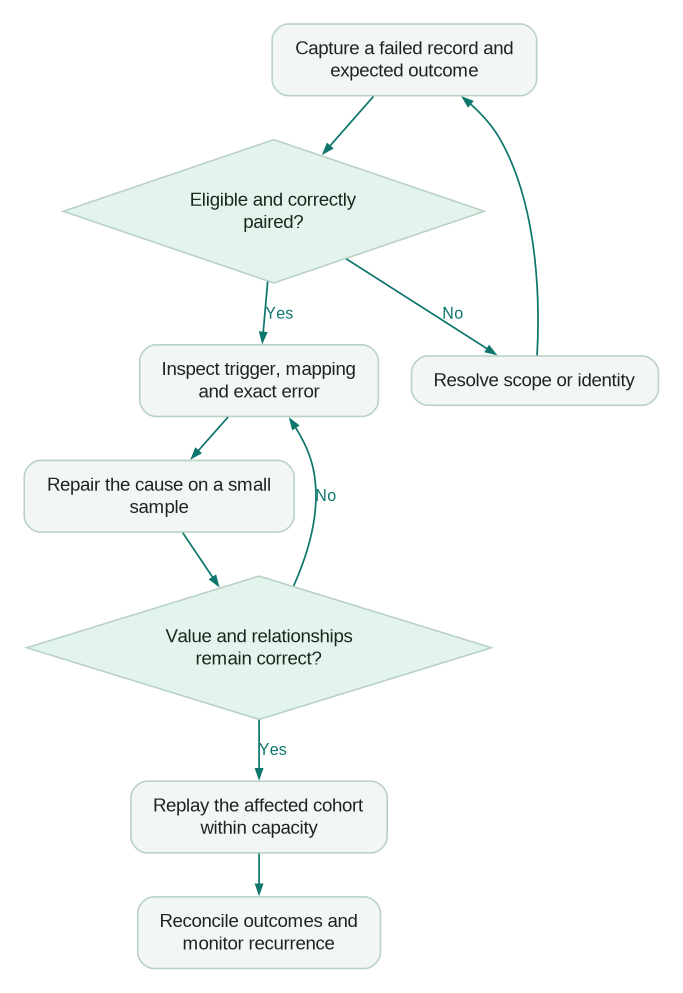
Read diagram as text
- Capture a failed record and expected outcome to Eligible and correctly paired?.
- Eligible and correctly paired? to Resolve scope or identity: No.
- Resolve scope or identity to Capture a failed record and expected outcome.
- Eligible and correctly paired? to Inspect trigger, mapping and exact error: Yes.
- Inspect trigger, mapping and exact error to Repair the cause on a small sample.
- Repair the cause on a small sample to Value and relationships remain correct?.
- Value and relationships remain correct? to Inspect trigger, mapping and exact error: No.
- Value and relationships remain correct? to Replay the affected cohort within capacity: Yes.
- Replay the affected cohort within capacity to Reconcile outcomes and monitor recurrence
Preserve the affected cohort before changing it. Select records by the actual failure condition and incident window, not by a broad “last updated this month” filter that includes unrelated work.
Agree on the batch size and stop condition with the Salesforce administrator. Watch the error type, remaining capacity and downstream customer actions. A replay can trigger workflows, so review notifications, tasks and outreach before executing it.
After each batch, verify a matched set of source and destination IDs, required fields, ownership and relationships. Keep rejected records in an actionable queue with a reason and owner. “Attempted again” is not a resolution status.
How do you measure whether the handoff recovered?
Measure the eligible records that reach the correct owner and state by the agreed deadline. A dashboard showing the number of connected contacts does not tell you whether today's accepted leads reached sales in time.
In this hypothetical one-day handoff, 700 contacts are reviewed but only 500 qualify. The denominator is the eligible group, not everyone reviewed.
| Handoff stage | Contacts | Interpretation |
|---|---|---|
| Reviewed | 700 | Initial scope |
| Eligible | 500 | Correct outcome denominator |
| Correct owner and state before deadline | 480 | Successful handoffs |
| Eligible but unsuccessful | 20 | Repair cohort |
The success rate is 480 ÷ 500 = 96%. Suppose the twenty failures split into six permission cases, five picklist cases, four validation cases, three identity cases and two association cases. The counts reconcile to twenty; they are illustrative categories, not industry frequencies.
Also inspect unexpected arrivals: records that should have remained excluded. Perfect delivery of the eligible cohort does not excuse transferring a separate ineligible cohort.
Track the age of the oldest unresolved failure, repeat incidents by field and failures in high-value handoffs. A small error count can still matter if every affected record is a renewal due today.
What keeps the integration maintainable after recovery?
Keep a current operating contract and rerun its acceptance cases after either CRM changes. Use the HubSpot implementation checklist for the wider rollout, and record the recurring integration responsibilities beside it.
Checklist
- Each object has documented direction, creation behaviour and filters.
- Required fields have definitions and a responsible writer.
- Empty values and initial sync behaviour have been tested.
- Allowed and excluded records both behave as intended.
- Picklist and validation changes include an integration review.
- Departing users and changed owners have a reassignment process.
- API capacity and sync errors have operational owners.
- Recovery batches reconcile business outcomes after automation runs.
- Schema, mapping and permission changes retain a change record.
Review this record when either team changes qualification, territory, pipeline or required fields. The integration is part of those processes, even when its settings page remains untouched. Maintain the contract every CRM integration needs alongside these CRM-specific settings.
For a reporting question across both systems, copy both CRMs into a warehouse for reporting and reconcile each source separately rather than making operational sync carry the analysis. If Marketo participates in the customer flow, apply the same sync ownership questions for Marketo and name who reviews its continuing run work.
For continuing coexistence, request a detailed CRM integration scope covering field ownership, repair and verification. Bring one representative failure to the $99 martech audit if the cause is still unclear.
Keep reading
Browse all CRM & Lifecycle guides
 CRM & Lifecycle
Salesforce Implementation Checklist: From Scope to a Working Release
Plan a Salesforce rollout with owners, migration rehearsals, permissions, integration tests, UAT, cutover and recovery gates before approving the release.
Jafrin Akter AloLast updated 14 min read
 CRM & Lifecycle
Salesforce to HubSpot migration: plan, field mapping and cutover checklist
Plan a Salesforce to HubSpot migration: phases, a field mapping template, load order, Smart Transfer limits, reconciliation checks and a safe cutover.
Jafrin Akter AloLast updated 21 min read
 CRM & Lifecycle
HubSpot implementation: a phased plan, template and launch checklist
Implement HubSpot in five phases: scope, data model, migration, integrations and launch. Includes a plan template, a worked example and a go-live checklist.
Jafrin Akter AloLast updated 22 min read
CRM & marketing automation
See the implementation scope, deliverables and acceptance checks.
Questions people ask
Why is a record missing when there is no sync error?
The error queue shows attempted operations that failed, not every operation the business expected. Check the connected organisation, object settings, identity pairing, eligibility and trigger time. A formula recalculation may not trigger the same action as an ordinary mapped-field change. Trace one source update through the connector before treating silence as a permissions problem.
Does an inclusion segment stop all Salesforce data entering HubSpot?
No. It primarily controls HubSpot-to-Salesforce eligibility and has initial-pairing behaviour that requires separate testing. Salesforce-to-HubSpot filtering depends on the object and configured controls. Test a deliberately excluded record in both directions, including its first pairing. An empty segment or absence from today's membership does not prove the record never transferred earlier.
Should every field use two-way sync?
Only when both systems' updates have an agreed meaning and competing writers are controlled. Separate sales acceptance from marketing qualification when they describe different states. Test blanks, initial pairing and object-level direction as well as normal updates. A convenient two-way default cannot settle which team has authority to change a business fact.
Will syncing resume on its own after a suspension?
API-capacity suspensions can clear when calls become available. Other causes require their documented repair and may need Clear Suspension. Do not stop at the disappearance of the banner. Verify one representative update, inspect the remaining backlog and confirm that related automation did not reverse the repaired values.
How do I know the repair worked?
Check that the intended records reach the correct destination state by the business deadline, with valid owners and associations. Recheck after normal automation runs, and confirm deliberately excluded records stay excluded. Repair the source producing the bad value as well as the stored record. A successful retry alone does not establish sustained recovery.
Sources
- HubSpot: Resolve Salesforce integration suspension errors.
- HubSpot: Connect HubSpot and Salesforce.
- HubSpot: Sync companies between HubSpot and Salesforce.
- HubSpot: Supported apps for Smart Transfer.
- HubSpot: Sync custom objects between HubSpot and Salesforce.
- HubSpot: Flexible seats-and-credits catalogue supplement.
- HubSpot: Sync records and inclusion segments.
- HubSpot: Permissions-based Salesforce selective sync.
- HubSpot: Map properties to Salesforce fields.
- HubSpot: Import and sync Salesforce records.
- HubSpot: API calls and sync errors.
- Salesforce: Integration-user configuration.
- Salesforce: Picklists and restricted values.
- Salesforce: Conditional validation rules.
- Salesforce: Duplicate-rule API behaviour.
- HubSpot: Sync activities and tasks with Salesforce.
- HubSpot: Set up user notifications in HubSpot.

Written by
Jafrin Akter AloData Engineer and Co-founder at Martechdevs and Growth and Analytics Partners
Jafrin writes practical guides to marketing technology, customer data, analytics and AI workflows. Martechdevs is a Growth and Analytics Partners company.