
Google Ads Conversion Label: Location, Tag Setup and Validation
A Google Ads conversion label identifies the conversion action used by a native website conversion tag. Find it in that action's tag setup and copy it with the matching conversion ID. The label is different from the action's display name, a GA4 measurement ID or a click identifier, and correct routing still needs a valid business trigger and payload.
On this page
Google Ads conversion identifiers
The examples below are illustrative placeholders, not values for a production account.
| Identifier | Illustrative form | Purpose | Setup check |
|---|---|---|---|
| Conversion ID | 123456789 | Identifies the Ads measurement destination | Copy from the intended action's setup |
| Ads tag or destination ID | AW-123456789 | Ads destination with its tag prefix | Use the format required by the integration |
| Conversion label | REPLACE_WITH_ACTION_LABEL | Identifies the specific native conversion action | Copy the exact label, including capitalization |
| Conversion action name | Purchase | Human-readable account label for the action | Useful context, but not the event-routing value |
| GA4 measurement ID | G-XXXXXXXXXX | Identifies an Analytics web stream | Keep the Analytics setup separate from the Ads label |
Google's Tag Manager guide distinguishes the account's Conversion ID from the Conversion Label for a particular action. Its conversion event example combines the Ads destination and action label in the send_to parameter. Google Ads conversion setup and Google conversion event guide
At Martechdevs, we would connect the selected action to the accepted order or lead event before publishing its tag. Our analytics and tracking implementation service covers that mapping, payload validation and the reporting evidence needed for handover.
Conversion-label location
Open the conversion action that is meant to receive the website event. Copy the values from its own setup rather than borrowing a label from another tag with a similar name.
- In Google Ads, open Goals.
- Under Conversions, open Summary.
- Select the intended conversion action.
- Open its Tag setup section.
- Select Use Google Tag Manager.
- Copy the Conversion ID and Conversion Label into the corresponding implementation fields.
Record the action name and source alongside the copied identifiers. A shared document containing only an opaque label is difficult to review later. The account owner should be able to connect the value with the intended business event.
If several actions have similar names, inspect their source and purpose before copying anything. A purchase action, a lead action and an imported Analytics event can coexist in the same reporting account. Their names alone do not establish that they are interchangeable.
When an implementation already exists, compare its configured destination with the action being investigated. Do not create a new conversion action merely because the current tag is difficult to understand. First determine whether the existing action should be repaired, replaced or retained.
Missing labels and different collection routes
Not every conversion setup produces a standalone label for manual tagging. Google's current Tag Manager guide says automatically created actions, including auto-detected goals and Smart campaign conversions, do not generate a standalone Conversion Label. A coded native website setup uses an appropriate manual conversion action. Conversion action and label requirements
An Analytics-derived conversion has a different collection path. Google documents creating conversions from Analytics events through the connected products. Establish whether the business intends to use that route or a native Ads website action before adding another tag. Analytics events in Google Ads
The objective is a deliberate measurement design. If the same purchase is represented through several actions, define which one drives the intended reporting and campaign goal. A new label is not a repair for an unexplained difference between sources.
The Google Ads versus GA4 conversions guide explains the source, attribution and date differences. Use this label guide for the narrower question of routing a native website event to its intended action.
Google Tag Manager configuration
For the event tag, choose the Google Ads Conversion Tracking template and enter the copied ID and label into their respective fields. Use variables for values that change per event, such as order amount, currency and transaction ID.
Google notes that an empty or undefined Conversion Value field in this Tag Manager setup sends a value of zero. A tag firing successfully can therefore still produce the wrong revenue data. Inspect the resolved variable values at the actual success event, not just their names in the workspace.
Verify the container's destination setup too. Google's current guidance distinguishes a Google-tag route, where conversion-linker behavior must be enabled, from direct destination tags that handle that behavior automatically. Apply the instructions for the chosen configuration rather than adding duplicate infrastructure from an older recipe. Current conversion-measurement setup
The Google destinations view helps identify the connected account. A destination tag establishes the destination connection; the conversion event still needs the appropriate action and trigger. Tag Manager Google destinations
Keep the trigger tied to the accepted business event. A purchase button click can precede a failed payment. A form button click can precede a validation error. If the defined conversion is a completed order or accepted lead, fire from that outcome rather than assuming the click proves completion.
A gtag conversion-event example
This illustrative snippet shows the routing shape for a hypothetical USD79 order. Replace the destination and label with the intended action's values, and populate amount, currency and a unique order ID from the accepted transaction. The fixed example identifiers must not become production values.
gtag("event", "conversion", {
  send_to: "AW-123456789/REPLACE_WITH_ACTION_LABEL",
  value: 79,
  currency: "USD",
  transaction_id: "EXAMPLE_ORDER_001"
});
The portion before the slash identifies the Ads destination. The portion after the slash is the action label. The value and currency describe the event's monetary amount, while transaction_id identifies the individual transaction for the relevant duplicate-handling design.
The code assumes the appropriate Google tag setup already exists and that the call occurs at the accepted event. It is not a complete installation by itself. The Google event guide documents the native conversion call and its parameters.
Keep the production data source explicit. If an order amount lives in the backend but the tag reads a display string, currency symbols or formatting can create an invalid value. Expose a numeric amount and the intended currency code through the agreed data layer or integration.
Transaction IDs and duplicate handling
Google says two conversions for the same action and transaction ID are recognized as duplicates. The identifier must be unique to the individual transaction and must not contain information that identifies a customer. A fixed placeholder reused across orders can cause undercounting. Google transaction-ID guidance
A transaction ID is separate from the conversion label. The label describes the kind of action being measured; the transaction ID describes the individual occurrence. Reusing the purchase label for many purchases is expected, while reusing one order ID for unrelated purchases is not.
Consider a hypothetical fixture with two accepted orders: order A for USD79 and order B for USD49. The confirmation page for A reloads and emits the same payload again.
| Observed item | Event amount | Transaction identity | Expected reconciliation treatment |
|---|---|---|---|
| First event for order A | $79 | A | One accepted order |
| Reload event for order A | $79 | A again | Repeated occurrence, not another business order |
| Event for order B | $49 | B | A second accepted order |
The raw event amounts total $207, while the accepted order total is $128. The difference is the repeated $79 event. This is an illustrative reconciliation target; a payload log alone does not establish what the Ads account ultimately attributed or counted.
The Count setting is another separate control. Google distinguishes counting one conversion per ad click from using transaction IDs to avoid counting the same purchase twice. Choosing One is not a general replacement for a correct purchase identifier.
Also inspect the action when investigating duplicates. The documented transaction-ID rule is within the same conversion action. Do not assume that the same order ID automatically resolves two separately configured actions representing the same business outcome.
A controlled acceptance sequence
Use a controlled test record and record the intended action before beginning. Inspect the event in Tag Manager preview or the applicable tag-debugging route, then verify the resolved destination and business fields.
- Confirm the action name, source, Conversion ID and label in the setup record.
- Complete the agreed success event with a controlled order or lead.
- Confirm that the event tag fires at that outcome and not at an earlier failed attempt.
- Inspect the destination, label, value, currency and transaction ID.
- Repeat the relevant reload or retry case and compare business occurrences.
- Test a second distinct outcome to ensure the ID changes appropriately.
- Review the expected consent behavior and later reporting evidence.
Google's transaction-ID guide describes using Tag Assistant to inspect the conversion hit and its transaction_id. That is useful payload evidence, but it remains separate from the account's attribution and reporting result.
A direct test visit does not automatically reproduce an eligible advertising interaction. Record what the test actually demonstrates: trigger behavior, payload routing, duplicate identity or an attributed conversion in the intended report. Avoid calling a label validated solely because a tag appears in a list.
Use the click ID lookup tool when identifying campaign parameters along the landing journey. A click identifier and a conversion label serve different jobs; retain both definitions in the investigation.
Consent and page-transition timing
Consent state can change tag behavior, so include the approved accepted and declined cases in the test. Do not assume that every declined state means an identical network result across all implementations. Google distinguishes basic and advanced Consent Mode behavior. Google Consent Mode overview
Check the order of operations on a success page or single-page application. The data needed for the conversion should exist before the event tag resolves its variables. A route-change trigger that fires before the order response arrives can send an empty value or placeholder ID.
If a navigation interrupts an event, inspect the actual event and request evidence. Avoid adding a second broad page-view trigger as a shortcut, because that can create repeated or unrelated conversions. Repair the timing and repeat the accepted and failed business cases.
The Google Tag Manager implementation guide covers broader container design. Keep the label repair focused on the event and action that are actually affected.
Conversion-label failure diagnostics
| Symptom | Possible cause | Evidence | Repair direction |
|---|---|---|---|
| No standalone label in the action | Automatically created or different-source setup | Action source and tag setup | Confirm the intended collection route |
| Tag fires for the wrong action | Mismatched ID or label | Resolved destination and account action | Correct the copied pair |
| Correct label with zero value | Empty or undefined value variable | Event-time payload | Repair the amount source |
| Several orders share one ID | Static placeholder or failed dynamic variable | Two distinct transaction payloads | Use the real unique order identifier |
| Same business outcome appears through several actions | Duplicate measurement design | Action inventory and reporting goals | Assign deliberate source and action ownership |
| Tag appears correct but reporting differs | Attribution, timing, consent or goal scope | Account diagnostics and matched report | Trace the remaining layer |
The Google Ads conversion diagnostics guide follows those later reporting and setup warnings. Preserve the exact symptom rather than changing labels repeatedly without a hypothesis.
Label and event repair workflow
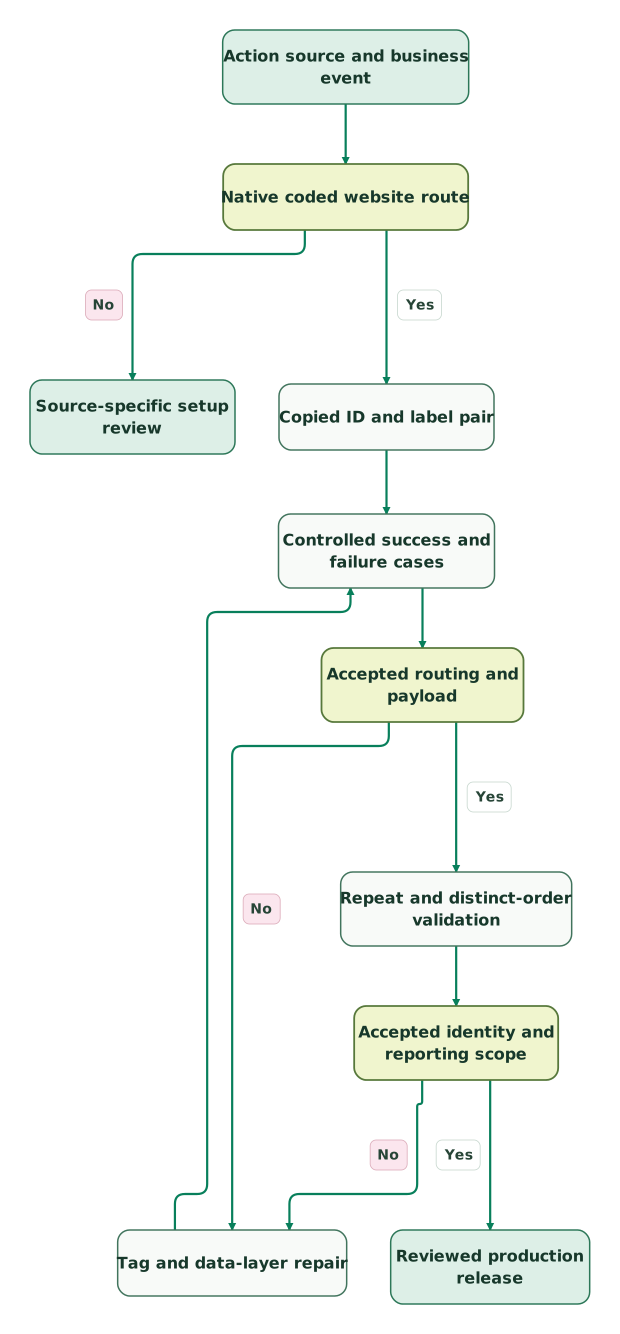
Read diagram as text
- Action source and business event to Native coded website route.
- Native coded website route to Source-specific setup review: No.
- Native coded website route to Copied ID and label pair: Yes.
- Copied ID and label pair to Controlled success and failure cases.
- Controlled success and failure cases to Accepted routing and payload.
- Accepted routing and payload to Tag and data-layer repair: No.
- Tag and data-layer repair to Controlled success and failure cases.
- Accepted routing and payload to Repeat and distinct-order validation: Yes.
- Repeat and distinct-order validation to Accepted identity and reporting scope.
- Accepted identity and reporting scope to Tag and data-layer repair: No.
- Accepted identity and reporting scope to Reviewed production release: Yes
Conversion-label checklist
- The intended action and collection source are identified.
- The copied ID and label belong to the same intended setup.
- The action name, GA4 ID and click identifiers are kept separate.
- Destination and conversion-linker behavior match the chosen tag route.
- The trigger represents the accepted business event.
- Value, currency and transaction ID resolve correctly at event time.
- A reload and a second distinct order have the intended identity treatment.
- Consent cases and page-transition timing are checked.
- Tag evidence and account reporting evidence are documented separately.
Use the GTM container audit skill to retain the tag, variable and trigger evidence. The useful handover is a reproducible mapping from a business outcome to the intended action, with enough detail to diagnose the next change.
Keep reading
Browse all Tracking & Attribution guides
 Tracking & Attribution
Google Ads conversion diagnostics: "setup is incomplete" and "needs attention" explained
Diagnose incomplete setup, inactive tags and enhanced-conversion alerts. Verify campaign goals, event delivery, offline uploads and the 2026 API changes.
Jafrin Akter AloLast updated 15 min read
 Tracking & Attribution
Why Google Ads and GA4 conversions do not match, and how to reconcile them
Google Ads and GA4 count conversions on different dates, models and rules. Align them step by step, check third-party estimates and report one number.
Jafrin Akter AloLast updated 14 min read
 Tracking & Attribution
Common Google Tag Manager mistakes and how to fix them
The Google Tag Manager mistakes behind duplicate events, missing sessions and wrong conversions, with the fix for each and a pre-publish checklist.
Jafrin Akter AloLast updated 16 min read
Analytics & tracking
See the implementation scope, deliverables and acceptance checks.
Questions people ask
Can the conversion action name be entered as its Google Ads label?
The conversion action's display name should not be entered as its routing label. A name such as Purchase helps people identify the action in the account, while the Conversion Label is the specific value supplied in tag setup. Copy that value with the matching Conversion ID and verify the resolved destination during a controlled event.
Can an automatically detected Google Ads action have no standalone label?
An automatically detected action can have no standalone label. Google's current Tag Manager guidance identifies automatically created goals and Smart campaign conversions as examples. Check the action's source and setup before adding another action. If the intended design is a coded native website conversion, use the appropriate manual action and review overlap with any existing measurement route.
Can a correct conversion label still send a zero purchase value?
A correct label can still send a zero purchase value when the amount variable is empty or undefined in the documented Tag Manager setup. Routing and payload correctness are separate checks. Inspect the actual value and currency at the accepted order event, then repair the data source or event timing rather than changing an otherwise correct label.
Should the transaction ID change when the same confirmation page reloads?
The transaction ID should continue to identify the same accepted order when its confirmation page reloads. Generating a new ID for each page view would make one business occurrence look like several distinct transactions. A different accepted order needs its own unique ID. Test both cases and inspect the actual payload rather than relying on a variable's configured name.
Does a conversion event in Tag Assistant prove that Google Ads attributed a sale?
A conversion event in Tag Assistant proves only the observed tag and payload behavior. Attribution still depends on the relevant advertising interaction, account settings, consent and reporting conditions. Record what the test establishes and inspect the intended conversion action separately. A correctly routed test event should not be described as an attributed production sale without that additional evidence.
Sources

Written by
Jafrin Akter AloData Engineer and Co-founder at Martechdevs and Growth and Analytics Partners
Jafrin writes practical guides to marketing technology, customer data, analytics and AI workflows. Martechdevs is a Growth and Analytics Partners company.