
Salesforce Zendesk Integration: 8 Checks for Missing or Wrong Data
A Salesforce Zendesk integration needs a separate contract for each job: viewing tickets, copying tickets into cases, syncing customer fields or showing Salesforce context beside a support ticket. Choose the feature first, then verify its identity, permissions and expected writes. A connected account does not prove that a case exists, a customer match is correct or the value an agent sees is current.
On this page
Which Salesforce Zendesk integration feature do you need?
Choose the native feature according to the action the receiving team must perform. Keep a visible panel separate from a stored record that can drive reports or automation.
| Required job | Native feature | Main direction | Acceptance question |
|---|---|---|---|
| Sales needs to inspect support conversations | Ticket view in Salesforce | Zendesk tickets displayed in Salesforce | Can the intended salesperson see the correct customer's tickets? |
| Salesforce needs case records for reporting or workflows | Ticket sync | Zendesk tickets to Salesforce cases | Does each included ticket have the intended case and associations? |
| Zendesk routing needs stored customer attributes | Customer data sync | Salesforce accounts/contacts or leads to Zendesk organizations/users | Does the correct record receive only the intended fields? |
| Support needs Salesforce context inside a ticket | Salesforce sidebar app | Salesforce records displayed in Zendesk | Is the selected account context visible and fresh enough? |
These features are configured separately after connecting the accounts. A new connection initially leaves its features inactive. Zendesk integration overview
Write one sentence describing the job before enabling a feature. “Sales needs case-level reporting for escalated tickets” justifies a stored case. “Sales needs to read the latest support conversation before calling” may only require ticket view.
For the information support actually needs, use the customer-context guide. Our CRM and lifecycle implementation work connects those operating requirements to the correct objects, writers and access rules.
Which eight checks locate missing or incorrect data?
Identify the failed feature and observable symptom before reconnecting accounts or creating more records. These eight checks separate failures that can look identical in a dashboard.
| Check | Symptom | Evidence to inspect | First decision |
|---|---|---|---|
| 1. Feature selection | A ticket is visible but no case appears in reports | Active feature and expected destination object | Decide whether a stored case was required |
| 2. User access | The administrator succeeds but a salesperson fails | Connected-app access, PKCE and the matching field's visibility | Test the actual consuming role |
| 3. Update trigger | A Salesforce edit never reaches Zendesk | Changed field, mapping and filter | Establish whether the change qualified for sync |
| 4. Record matching | A new or incorrect customer record appears | Configured key, existing link and create-on-no-match choice | Resolve identity before further writes |
| 5. Field ownership | A useful Zendesk value disappears | Source value, destination value and writer | Decide whether this field should be mapped |
| 6. Case acceptance | An eligible ticket never becomes a case | Ticket event, integration-user log and Salesforce validation | Repair the rejected write |
| 7. Sidebar freshness | The support panel disagrees with Salesforce | Cache duration, refresh permission and source observation | Refresh or label the context as stale |
| 8. Streaming capacity | Customer data sync becomes inactive | Streaming usage and integration status | Restore capacity before reactivating and reconciling |
The sections below explain each boundary. Keep the evidence tied to one ticket, requester, organization and Salesforce environment so a successful test against another account does not obscure the failure.
What must pass before you connect the accounts?
Confirm the Salesforce edition, connecting identity and feature-specific permissions before authorizing the connection. Zendesk lists Performance, Unlimited, Enterprise and Developer, plus other editions with Salesforce API rights, including Professional with the API add-on. Supported Salesforce editions
The connecting user needs an interactive Salesforce licence; an API-only Salesforce Integration user cannot complete this native connection. The permission checklist covers API access, metadata changes, relevant objects/fields and Streaming API requirements. Configure the intended profiles before connecting. Salesforce profile requirements
Separate three identities in the implementation record:
- The Salesforce user that authorizes the integration.
- The Salesforce user who consumes ticket view or case reporting.
- The Zendesk agent who consumes customer context or performs support work.
Those users have different jobs. A successful administrator login proves little about an ordinary salesperson's field visibility or a support agent's access to a sensitive account attribute.
Review session security with the Salesforce administrator: Zendesk identifies IP-locked sessions as a cause of disconnection after expiry. Do not make a broad security-setting change without considering the organization's access design. Connection-expiry troubleshooting
Record the production and sandbox account identifiers explicitly. Test with controlled records and suppress customer-facing automations during the pilot. A sandbox connected to a production recipient can still produce a real write or message.
How should you establish the first record match?
Prove the customer relationship using a deliberate matching key, then verify the stored link. A familiar display name is weak evidence when subsidiaries, duplicate accounts or shared email addresses exist.
Salesforce-to-Zendesk data sync supports one matching criterion. Once a record is matched or created, subsequent updates use the stored link. Multiple matches fail rather than selecting a record. The feature connects one Salesforce organization with one Zendesk account. Data-sync matching rules
For a hypothetical B2B business, maintain an approved mapping register like this:
| Business relationship | Source key | Destination key | What must be proven |
|---|---|---|---|
| Commercial account | Salesforce account ID | Zendesk organization ID | The records represent the same customer entity |
| Support requester | Salesforce contact or lead ID | Zendesk user ID | The person is the intended requester |
| Support obligation | Zendesk account plus ticket ID | Salesforce organization plus case ID | One included ticket maps to its intended case |
| Customer context | Selected account and source field | Displayed or copied attribute | Its meaning, access and freshness fit the support task |
Preserve the account namespace around IDs when exporting or combining instances. Normalize Salesforce identifiers using the 15- versus 18-character ID guidance before a case-insensitive comparison creates a false match.
Ticket sync also has requester and organization matching behavior. If it creates a contact, that contact links to a Salesforce account only when the ticket's Zendesk organization syncs from a Salesforce account. An email match alone does not establish the required organization relationship. Contact and account linking
Before allowing unmatched records to be created, inspect a sample of no-match and ambiguous cases. Separate a genuinely new customer from a missing key, outdated address or duplicate source record. Otherwise the integration can preserve the original problem and add another record around it.
What changes when one requester belongs to several accounts?
Use an explicit membership model when one email represents a person working with several organizations. Do not force that person into whichever account happened to sync last.
Zendesk's multiple-organization integration feature requires per-account permission from Zendesk Support. It can connect multiple Salesforce contacts sharing an email to one Zendesk user. Memberships are added, not deleted, and mapped fields depend on the Salesforce primary account relationship matching the user's default Zendesk organization. Multiple-organization behavior
Test a consultant who supports two customers, then remove access to one. Verify the remaining membership, selected ticket organization and any sensitive context separately. The supported sync behavior does not replace your access-removal process.
For shared mailboxes, decide whether the address represents an individual or a team. Do not use the mailbox alone to decide which customer's records the requester may receive. Keep unresolved identity visible to the person handling the ticket.
Which Salesforce fields should be allowed to overwrite Zendesk?
Map fields only after naming their authoritative writer and empty-value behavior. A field used for support operations should not silently become a mirror of an unrelated sales field.
For mapped customer fields, Salesforce is authoritative. Its blank values can clear mapped Zendesk text; tags, email and phone append instead. Email additions become secondary addresses. Mapping an external ID can overwrite an existing identifier, so review consumers before selecting that option. Field-mapping behavior
Use a short register before turning on writes:
| Field purpose | Proposed owner | Blank handling to establish | Downstream check |
|---|---|---|---|
| Commercial segment | Revenue operations | Is unknown distinct from deliberately cleared? | Routing does not interpret blank as the lowest tier |
| Support entitlement | Approved entitlement source | What happens while the source is unavailable? | An outage does not remove promised service |
| Organization identity | Account-mapping owner | Missing keys remain exceptions | Another app's identifier is not overwritten |
| Contact address | Contact-data owner | Which address is current and verified? | Replies and identity matching use the intended address |
This table is an original design checklist, not a promise that the connector supports every desired policy. If the native mapping cannot express a necessary rule, narrow the fields or implement a separately governed route. The CRM property-ownership guide explains how to set that precedence.
For a stale-field investigation, change a mapped source field in the pilot. Zendesk's troubleshooting guidance says unmapped changes do not trigger this sync; formula values need another mapped-field change. Filters are case-sensitive and picklist filters use API values. Data-sync troubleshooting
How do you create Salesforce cases without implying a complete ticket archive?
Use ticket sync for the case fields your Salesforce process needs, and define historical coverage separately. Native ticket sync excludes attachments and closed tickets; it guarantees updates only to cases created by that sync. Ticket comments are not copied into a case field. Ticket-sync coverage
Implement a bounded pilot:
- Select the ticket population that needs Salesforce case reporting or action.
- Install the ticket-sync package and choose an appropriate case record type if needed.
- Map required case fields and permitted picklist values.
- Review requester and organization matching, including any creation choices.
- Configure the integration trigger's conditions and activate the feature.
- Create one controlled qualifying ticket and inspect the resulting case.
Keep the generated integration webhook and trigger names intact. The Record Type ID is different from the Salesforce organization ID. Required fields and unsupported mappings can reject a write. Zendesk multi-select fields are unsuitable for ticket sync; drop-downs mapped to text expose their tag values. Ticket-sync setup and mapping
Record which Salesforce automations will run when the case arrives. An integration-created case can be used by your own process, but that process needs its own owner, entry conditions and duplicate-action handling. Do not activate an email, escalation or entitlement change merely because the source ticket was copied successfully.
For already closed history, inventory the records and attachments the business needs, the supported export/import route and the relationship keys. Keep that work outside the live-ticket pilot. The Zendesk migration considerations help distinguish an operational connector from a complete historical move.
How should you diagnose a ticket that never becomes a case?
Follow the individual ticket from its trigger to the authenticated Salesforce user's result. Start with the first boundary for which evidence is missing.
Zendesk's diagnostic sequence checks active ticket sync, the integration trigger and the ticket event. If the trigger fired, trace the Salesforce user who authorized the connection and inspect validation or required-field errors. Ticket deletion, certain automatic closures and Import API creation do not follow the ordinary trigger path. Missing-case troubleshooting
Keep a small incident record containing the ticket ID, expected case, environment, relevant configuration version and observed failure. Do not replay the entire backlog because one record failed validation.
After repairing the cause, reconcile whether the destination already accepted any uncertain attempt. Retrying a request and creating another business case are different actions. Check the destination and related workflows before deciding which records need recovery.
Why can the administrator see tickets while sales cannot?
Check the consuming user's connected-app access and matching-field visibility, as well as PKCE. Ticket view queries Zendesk in real time without creating stored Salesforce case data. Its Case-page component is view-only. Ticket-view setup
The current setup requires approved profiles and PKCE for non-admin viewing. The matching Salesforce field must be readable by the viewer. Large matching criteria can also return no results if they exceed the query-character limit. Ticket-view access and matching
Review the information shown, not just whether the component loads. Zendesk says ticket-view read access uses the connecting administrator's permissions, while creation and editing use the linked Zendesk agent's permissions. Ticket-view permission boundaries
Test at least an intended sales role and a role that should not see the same customer context. The Salesforce field-permission checks help separate object access, field visibility and record access. A successful administrator demonstration should not become the team's only acceptance evidence.
Why does the Zendesk sidebar still show an old Salesforce value?
Inspect the sidebar cache before treating an old displayed value as a failed customer-data sync. The sidebar is a separate retrieval feature with its own timing.
The app appears on existing tickets and caches Salesforce data for sixty minutes by default. After expiry, it fetches again when an agent visits the ticket. Admins can allow manual refresh and configure role/group restrictions. The app supports several Salesforce organizations, but that does not extend the customer-data sync's topology. Salesforce sidebar configuration
In a hypothetical test, an agent opens a ticket at 10:00 and a Salesforce entitlement changes at 10:05. A panel still showing the earlier state at 10:10 does not identify the cause by itself. Compare the source record, cache policy, requested refresh and any separately stored Zendesk field.
Set freshness by decision. A sales-segment label can tolerate a different age from an answer about newly purchased access. Give the agent a refresh or escalation path when the displayed evidence is too old for the question.
Keep the sidebar narrow. Zendesk warns that more than five selected fields can slow retrieval or cause errors; account hierarchy and some lookup mappings are unsupported. Choose the few fields that change the support decision. Sidebar field and lookup limits
How do you prove case counts and customer links are correct?
Reconcile business identifiers and associations across a fixed, eligible population. Matching totals can conceal both a missing ticket and a duplicate case.
Consider four hypothetical included tickets. Ticket 501 has one correctly linked case. Ticket 502 has none. Ticket 503 has two cases. Ticket 504 has one case attached to the wrong account. There are four source tickets and four destination cases, but only one ticket passes the intended one-case, correct-account contract.
The following SQLite query checks two normalized audit tables. expected_links contains one approved row per included ticket. case_snapshot contains one row per distinct Salesforce case from the chosen integration scope. Both exports use the same Zendesk account, Salesforce organization and cutoff. Normalize IDs to text and resolve extract duplicates before running it.
WITH audit AS (
  SELECT
    e.ticket_id,
    e.expected_account_id,
    e.expected_contact_id,
    COUNT(c.case_id) AS matched_cases,
    SUM(CASE
      WHEN c.case_id IS NOT NULL
       AND (c.account_id IS NOT e.expected_account_id
         OR c.contact_id IS NOT e.expected_contact_id)
      THEN 1 ELSE 0
    END) AS wrong_links
  FROM expected_links AS e
  LEFT JOIN case_snapshot AS c
    ON c.zendesk_ticket_id = e.ticket_id
  GROUP BY
    e.ticket_id,
    e.expected_account_id,
    e.expected_contact_id
)
SELECT
  ticket_id,
  matched_cases,
  CASE
    WHEN expected_account_id IS NULL
      OR expected_contact_id IS NULL THEN 'REVIEW EXPECTED LINK'
    WHEN matched_cases = 0 THEN 'MISSING CASE'
    WHEN matched_cases > 1 THEN 'MULTIPLE CASES'
    WHEN wrong_links > 0 THEN 'WRONG CUSTOMER LINK'
    ELSE 'PASS'
  END AS result
FROM audit
ORDER BY ticket_id;
These table names are an original audit schema, not native Salesforce or Zendesk objects. The query reads copies and does not repair either platform. If your approved contract allows an absent account or lead-based association, adapt the expected fields and rule before interpreting a result.
| Ticket | Matched cases | Expected result | Next action |
|---|---|---|---|
| 501 | 1 | PASS | Retain the evidence for this case |
| 502 | 0 | MISSING CASE | Trace eligibility, trigger and rejected writes |
| 503 | 2 | MULTIPLE CASES | Establish the intended case and downstream effects |
| 504 | 1 | WRONG CUSTOMER LINK | Repair the mapping before further customer actions |
Also inspect cases outside the expected population. They may be legitimate earlier records, an export-scope problem or an unintended second sender. A query that starts from expected tickets cannot certify the entire destination.
What should happen when streaming limits or ownership change?
Treat a disabled sync or changed integration owner as an operating event requiring diagnosis and a controlled restart. Do not confuse unused REST capacity with available Streaming API capacity.
Zendesk says a Streaming API limit error can deactivate customer-data sync. Its usage guide points to DailyDurableStreamingApiEvents in Salesforce's limits response. Check the actual organization and other consumers before increasing workload. Streaming limits and deactivation
If the connecting administrator loses the required role, the integration can stop. Before changing that identity, capture the connection, mappings, active features and recovery evidence. After any reconnection, verify every intended feature and a controlled record again. Connection ownership
The Salesforce API-limit guide covers capacity management more broadly. The marketing-operations documentation guide provides a structure for keeping the integration's owner, mappings and runbook usable after a staff change.
Which tests should pass before you widen the integration?
Release the smallest approved scope only after the intended users, records and actions agree. Keep the tests specific to the enabled features.
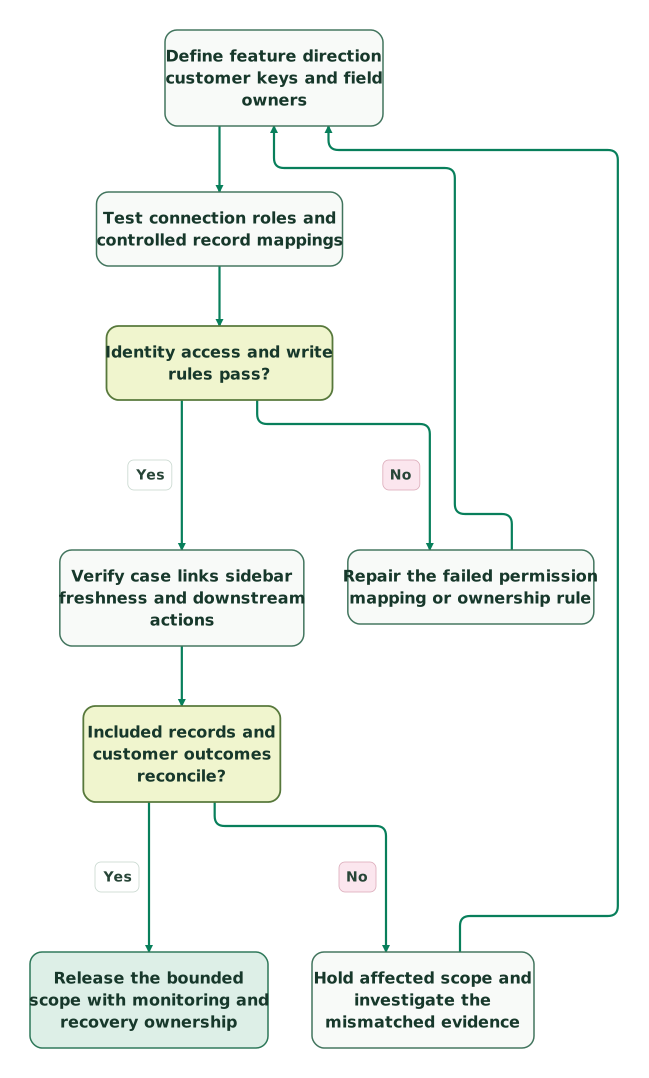
Read diagram as text
- Define feature direction customer keys and field owners to Test connection roles and controlled record mappings.
- Test connection roles and controlled record mappings to Identity access and write rules pass?.
- Identity access and write rules pass? to Repair the failed permission mapping or ownership rule: No.
- Repair the failed permission mapping or ownership rule to Define feature direction customer keys and field owners.
- Identity access and write rules pass? to Verify case links sidebar freshness and downstream actions: Yes.
- Verify case links sidebar freshness and downstream actions to Included records and customer outcomes reconcile?.
- Included records and customer outcomes reconcile? to Hold affected scope and investigate the mismatched evidence: No.
- Hold affected scope and investigate the mismatched evidence to Define feature direction customer keys and field owners.
- Included records and customer outcomes reconcile? to Release the bounded scope with monitoring and recovery ownership: Yes
Checklist
- Every enabled feature has a named business job and direction.
- Production and sandbox account identifiers are recorded.
- Initial matching and existing linked-record behavior are understood.
- New-record creation and blank overwrites are deliberate choices.
- Multi-account membership removal has its own operating owner.
- Intended sales and support roles pass their actual tasks.
- Case coverage includes known exclusions and historical requirements.
- Sidebar freshness fits the decision being made.
- Streaming capacity and disabled-sync alerts have an owner.
- Record identities and customer links reconcile before launch.
Bring the failed feature, a controlled ticket and its expected customer relationship to the $99 martech audit, or request a detailed CRM integration scope for the mapping, repair and acceptance work.
Keep reading
Browse all CRM & Lifecycle guides
 CRM & Lifecycle
Zendesk Implementation: What Goes Wrong and How to Fix It
Fix Zendesk routing, fields, macros, CRM sync and AI handoffs. Includes the 2027 AI agent migration dates, AI billing checks and a launch checklist.
Jafrin Akter AloLast updated 15 min read
 CRM & Lifecycle
Salesforce Implementation Mistakes That Break Revenue Operations
Avoid Salesforce failures in identity, migration, automation and permissions. Use a worked won-deal handover and an evidence-based release checklist.
Jafrin Akter AloLast updated 10 min read
 CRM & Lifecycle
Salesforce Implementation Checklist: From Scope to a Working Release
Plan a Salesforce rollout with owners, migration rehearsals, permissions, integration tests, UAT, cutover and recovery gates before approving the release.
Jafrin Akter AloLast updated 14 min read
CRM & marketing automation
See the implementation scope, deliverables and acceptance checks.
Questions people ask
What should survive a change of integration administrator?
Keep the connection's account identifiers, approved fields, enabled features, role requirements and recovery procedure under company ownership. Assign a successor before changing access, and schedule a controlled verification afterward. The handover should include the customer relationships and downstream actions the integration maintains. A password transfer alone does not explain which records may change or how the next operator will recognize a failure.
Should historical closed tickets be backfilled through the live integration trigger?
Plan historical backfill separately from live ticket delivery. Define the required records, comments, attachments and relationships, then choose and test an appropriate migration route. Preserve original ticket references so historical cases remain distinguishable from new support work. Confirm which destination automations must stay disabled during import and reconcile the result before allowing those historical records to influence operational reporting or customer actions.
How should a team handle a duplicate case after Salesforce automation has run?
Pause the affected downstream action and establish what each case already caused before selecting a survivor. Compare ownership, activities, customer messages and source-ticket references. Repair the matching or duplicate-creation cause, then perform the approved cleanup and repeat the original acceptance case. Deleting one record immediately can remove evidence while leaving an earlier message, task or field update unchanged elsewhere.
When should a support tier stay in the sidebar instead of a copied Zendesk field?
Use the sidebar when the tier is context for an agent and no Zendesk business rule needs a stored copy. Use a mapped field when the workflow requires that value for routing or another approved action, with explicit ownership and freshness rules. In either arrangement, establish what the agent should do when the value is unavailable or too old for the decision.
Can one successful ticket test establish that the whole integration is ready?
No. A clean ticket can miss duplicate accounts, shared addresses, restricted users, blank values, stale panels and excluded historical records. Test the representative failures for each enabled feature and retain evidence of the actual customer relationship. Keep the initial release bounded to the cases that passed, then expand only when the next population has suitable mappings, access and recovery coverage.
Sources
- Zendesk integration overview, editions and connection ownership
- Salesforce profile requirements for the Zendesk integration
- Salesforce integration troubleshooting
- Salesforce-to-Zendesk customer-data sync
- Contact and account linking to Salesforce cases
- Multiple organizations in the Salesforce integration
- Ticket-sync setup, exclusions and mappings
- Diagnosing tickets missing from Salesforce cases
- Ticket-view setup and user access
- Salesforce sidebar settings, caching and fields
- Salesforce Streaming API usage and sync deactivation

Written by
Jafrin Akter AloData Engineer and Co-founder at Martechdevs and Growth and Analytics Partners
Jafrin writes practical guides to marketing technology, customer data, analytics and AI workflows. Martechdevs is a Growth and Analytics Partners company.