
Salesforce Field Permissions: 6 Checks for Missing or Exposed Data
Diagnose Salesforce field permissions for one user, one field and one operation at a time. Confirm object and record access, trace every permission grant, then inspect the page, report or integration using the field. A field hidden from a page is not necessarily protected elsewhere, and an administrator's successful test does not establish what the actual integration user can read or change.
On this page
Start with the business decision. A renewal operator may need to read a contract date without changing it. A billing integration may need to write a payment status without seeing internal margin. “Give the integration access” is too broad to implement or verify.
Use the Salesforce implementation mistakes guide for the wider operating design. This guide focuses on the field-access boundary and the evidence needed to repair it without granting unrelated access.
What does Salesforce field-level security control?
Field-level security controls whether a user can read or edit individual fields on an object. It applies beyond the record page, including reports, list views, synchronized data and Salesforce APIs. Page layouts organize the interface; they are not a substitute for field permissions. Salesforce recommends managing field access with reusable permission sets and permission set groups. Field permissions.
Keep these investigation layers separate:
| Layer | Question to answer | Example of a different failure |
|---|---|---|
| Identity and environment | Which user and org perform this operation? | The connector uses an older integration identity |
| Object and record access | Can that user access this object and intended record? | The field is allowed, but the customer record is not shared |
| Field permissions | Can that user read or edit this particular field? | Read access exists, but edit access does not |
| Presentation or connector configuration | Does the selected surface expose the field? | The report type or cached connector schema omits it |
| Execution and business rules | What actually runs, and what can reject the operation? | Custom code, validation or record state changes the result |
This is a diagnostic sequence, not a complete simulation of Salesforce's access model. Use the actual permission summaries and failing operation to establish which layer is responsible.
Before changing access, record the object API name, field API name, target record, user, read/write requirement and failing surface. Use a sanitized representative record where possible. Preserve the exact error separately from your interpretation.
1. Are you testing the user that actually performs the operation?
Identify the effective user before inspecting their permissions. The person configuring a connector, the user authorizing it and the person viewing its output may be different people.
For a failing report, capture the user and report context. For a connector, identify the authenticated Salesforce user and the target org from its configuration. For custom automation, ask the implementation owner to identify the execution context. Do not replace a failing integration credential with an administrator's token simply to make the test pass.
Salesforce's User Access Summary provides a consolidated view. Open Setup → Users → the user → View Summary, then inspect Field Permissions. Use Access Granted By on the permission to trace its profile, permission sets or groups. Refresh the summary after assignment changes; Salesforce notes that updates may not appear immediately and that some access features are outside the summary. User Access Summary.
Save the user identifier and the relevant grant sources in the private change record. An access screenshot without the user and environment is easy to misinterpret later.
Compare the failing identity with a second, appropriately scoped test identity. The comparison should explain the missing or excess grant. An unrestricted administrator is useful for confirming that data exists, but is a poor acceptance identity for normal operations.
2. Does the user have the intended field grant, and where does it come from?
Trace the effective grant rather than looking at only one permission set. A profile or another assignment can still supply access after a particular set is removed.
For the field-centric view, open Object Manager → the object → Field Access, select the field and inspect the permission-set, group and profile tabs. This summary is available only for fields that support field permissions. Field Access Summary.
A muting permission set affects only its associated permission set group. If the same permission arrives through a profile, a directly assigned set or another group, the user retains it. Muting is therefore not a global deny. Muting scope.
Consider a fictional support operator who should read Renewal_Date__c but not edit it. Muting Edit in the support group will not remove Edit supplied by a directly assigned renewal-administration set. Record both paths and remove the inappropriate assignment or redesign the shared set with its owner.
Do not change a shared permission set without listing the affected users and jobs. The narrowest technical edit can still have a wide operational effect when hundreds of users inherit it.
3. Is a page-layout restriction being confused with field security?
Inspect the actual assigned layout when a user can read or write the field through one route but cannot edit it on a record page. Page-specific behavior can remain restrictive even when the permission set grants Edit.
Salesforce documents that a permission-set edit grant does not override a field made read-only on the page layout. The separate Edit Read Only Fields system permission is broad, so it should not be used as a routine fix for one page. Read-only layout troubleshooting.
Check the user's profile and record type, identify the layout actually assigned, and inspect the field there. If a Lightning component supplies the interface, identify its own visibility and data path rather than assuming the standard layout is rendering it.
The opposite test matters too: remove a sensitive field from the page, then verify whether the user can still obtain it through a permitted report or integration. If access must be denied, correct the field permission or execution path that grants it. Hiding a widget only changes what that widget displays.
Keep authorization separate from validation. A user can have permission to change a field while a business rule rejects a particular value or record transition. Capture the actual save error and inspect the named rule before broadening access.
4. Is the missing report field a report-type or relationship problem?
Check the report type and lookup path before changing permissions. A field can exist on an object and still be absent from the selected report's available fields.
Salesforce identifies custom report types left In Development and related fields not added through the lookup path as separate causes. Only users with Manage Custom Report Types can use an in-development type. Related fields must be included in the report-type field layout; the relationship alone does not expose them. Custom report-type field availability.
Duplicate the report for diagnosis and simplify it. Verify a known accessible record, then add the field and filters one at a time. Distinguish an unavailable column, an empty cell and a missing record; they do not establish the same cause.
For fields reached through a lookup, inspect access to the lookup field and related records. Salesforce documents that an inaccessible lookup field used as a filter, or inaccessible related records, can suppress expected report results. Lookup-field report behavior.
For example, a renewal report might start from Accounts but filter through a related agreement. Granting the visible renewal date will not repair a report type that omits the agreement relationship. Conversely, adding the relationship does not grant a user access to restricted agreement data.
Preserve the original report's business population. Removing a filter is a diagnostic step; it is not a valid repair if it changes “contracts requiring action” into “all accounts.”
5. Is the connector missing metadata, a value or write permission?
Separate those three outcomes by inspecting the connector's field list, the source record and the actual request or error. A blank destination field does not prove Salesforce denied it.
Salesforce's custom-field query troubleshooting calls out field permissions, exact API names, managed-package namespaces, API compatibility and user context. Compare the field's API name with the mapping; a friendly label is insufficient when two fields have similar names.
Then follow the connector's own discovery rules. Outreach, for example, requires mapped fields to be visible on the associated object layout and provides a refresh action for its field list. That is an Outreach-specific integration requirement, not proof that removing a field from any Salesforce layout universally revokes API access. Outreach field discovery.
Use this evidence table for the specific connector:
| Observation | Verify next | Evidence of a successful repair |
|---|---|---|
| Field absent from mapping selector | Correct object/name, identity access and vendor metadata refresh | Intended field appears with its actual API name |
| Field selectable, value blank | Source value, selected record and transformation | Known populated source value reaches the expected destination |
| Read succeeds, update fails | Edit permission, field type and exact save error | A permitted controlled update succeeds |
| Admin connection works, service identity fails | Differences in grants, record access and execution route | The service identity completes only its approved operation |
| New values arrive, historical rows remain blank | Backfill and sync-change behavior | The agreed historical population is reconciled separately |
Keep read and write tests separate. A lifecycle destination may need the value to select an audience but should never become its authoritative writer. The CRM property ownership guide helps define that boundary before granting Edit.
6. Does custom code run with the intended access mode?
Inspect the compiled API version and the explicit database access mode when Apex supplies the data. Do not assume that a custom controller behaves like the standard record page.
Salesforce's current controller guidance distinguishes API 67.0 and later, where database operations default to user mode, from 66.0 and earlier, where they default to system mode. It recommends explicit access modes for maintainability. with sharing concerns record sharing; it is not by itself a complete field- and object-permission check. Apex access enforcement.
Have the developer inspect the actual query and write operation, including any explicit system-mode choice. Treat an API-version upgrade as a behavior change to test, rather than assuming that the latest org release changes every existing class's compiled behavior.
The same guidance describes stripInaccessible() for removing inaccessible fields and inspecting what was removed. If a required business value is stripped, the application should handle that condition deliberately rather than reporting success with an unusable record. Controller field handling.
For an integration, test the caller identity, the operation and the returned payload together. A code review that finds an access keyword is useful evidence, but only the actual path can show whether another service or privileged query reintroduces the restricted value.
Why might a user see more fields than intended?
Inspect broad field grants, derived values and every remaining assignment. Removing one visible permission checkbox does not establish that the data is no longer exposed.
View All Records, Modify All Records, View All Data and Modify All Data address record access and do not by themselves override field-level security. View All Fields is a separate object permission that grants broad field visibility. Distinguish them before selecting a repair. Salesforce permission distinctions.
Review that broad field permission before relying on a field-by-field read restriction. A convenient access shortcut can also change how future fields are exposed, so the owner must understand its scope.
Inspect derived data as well. Salesforce warns that formula and roll-up summary fields can be visible even when they reference fields the user cannot see. Restricting the inputs therefore does not automatically protect a separately exposed result. Derived-field visibility.
Use a concrete example: hiding an internal margin field is incomplete if a visible formula reproduces its value or makes it directly calculable. Review the fields, exports and custom responses that carry the same information, then test the intended restricted role again.
What should the access acceptance test contain?
Test both allowed operations and denied operations for the real roles and data paths. “The field now appears” closes only one part of the requirement.
The following is an illustrative policy for custom Account fields, not a claim about built-in Salesforce permissions. Replace the names and roles with your approved design.
| Role | Field | Read | Edit |
|---|---|---|---|
| Renewal operator | Renewal_Date__c | Allow | Deny |
| Contract administrator | Renewal_Date__c | Allow | Allow |
| Lifecycle integration | Health_Status__c | Allow | Deny |
| Health-score writer | Health_Status__c | Allow | Allow |
| Support operator | Internal_Margin__c | Deny | Deny |
| Finance analyst | Internal_Margin__c | Allow | Deny |
For each row, exercise the applicable interface, report and API route. Also test a record outside the user's intended population. A field grant should not be mistaken for permission to see every customer's record.
Keep a small acceptance record:
Environment and effective user:
Object and field API names:
Business reason and approved access:
Source record and operation:
Permission grant sources:
Expected result:
Observed result and sanitized evidence:
Other assigned roles affected:
Rollback owner and retest outcome:
The investigation should follow this path:
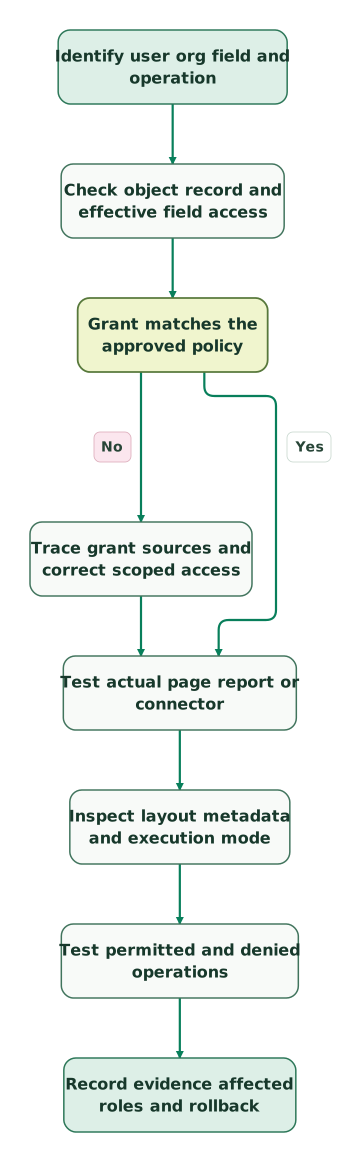
Read diagram as text
- Identify user org field and operation to Check object record and effective field access.
- Check object record and effective field access to Grant matches the approved policy.
- Grant matches the approved policy to Trace grant sources and correct scoped access: No.
- Trace grant sources and correct scoped access to Test actual page report or connector.
- Grant matches the approved policy to Test actual page report or connector: Yes.
- Test actual page report or connector to Inspect layout metadata and execution mode.
- Inspect layout metadata and execution mode to Test permitted and denied operations.
- Test permitted and denied operations to Record evidence affected roles and rollback
Before releasing the change:
Checklist
- The effective user, org and field are explicit.
- Object, record and field access were checked separately.
- Every relevant grant source and muting scope was reviewed.
- The actual layout, report type or connector metadata path was inspected.
- Custom code's API version and access mode are known where applicable.
- Read and write expectations have separate results.
- Restricted roles and records remain restricted.
- Formula outputs and downstream copies were considered.
- Shared permission changes have an affected-user list and rollback owner.
Our CRM and lifecycle implementation service connects these permissions to the processes they protect: reliable customer handoffs, usable reporting and integrations with clear field ownership. Bring the failing role, field and operation to a scoped implementation discussion so the work starts from an observable boundary.
Keep reading
Browse all CRM & Lifecycle guides
 CRM & Lifecycle
Salesforce Implementation Checklist: From Scope to a Working Release
Plan a Salesforce rollout with owners, migration rehearsals, permissions, integration tests, UAT, cutover and recovery gates before approving the release.
Jafrin Akter AloLast updated 14 min read
 CRM & Lifecycle
Salesforce to HubSpot migration: plan, field mapping and cutover checklist
Plan a Salesforce to HubSpot migration: phases, a field mapping template, load order, Smart Transfer limits, reconciliation checks and a safe cutover.
Jafrin Akter AloLast updated 21 min read
 CRM & Lifecycle
Salesforce Implementation Mistakes That Break Revenue Operations
Avoid Salesforce failures in identity, migration, automation and permissions. Use a worked won-deal handover and an evidence-based release checklist.
Jafrin Akter AloLast updated 10 min read
CRM & marketing automation
See the implementation scope, deliverables and acceptance checks.
Questions people ask
Should a marketing integration receive Edit access to every field it can read?
No. Grant write access only to fields the integration is approved to maintain. A marketing system may need contract status for audience selection while the billing or customer-success process remains its owner. Test an attempted update to a protected field as well as a successful read. Document how the integration reacts to denied writes so it does not retry indefinitely.
Can removing access from Salesforce erase a value already copied to another tool?
No. Treat downstream copies as a separate retention and access problem. Identify which connector, export or report previously transferred the value, then apply the approved policy in that destination. Verify both future collection and existing stored data. A Salesforce permission change can restrict a source operation without deleting a warehouse column, emailed attachment or cached customer profile elsewhere.
How should a permission change be tested when one person holds several roles?
Test the user's combined assignments, then compare them with each intended role in isolation. A person can retain a grant through a second responsibility even when it is removed from the first group. Confirm that the combined access is approved for that individual. Also retest users who share the changed permission set but do not hold the additional role.
Should a missing lookup label be treated as a missing underlying relationship?
No. A user may encounter a display or access restriction while the relationship itself still exists. Preserve the referenced record identifier in the investigation and have an authorized owner inspect the relationship and relevant permissions. Do not clear or replace the lookup merely to remove a blank label. Test the intended display after the access decision is resolved.
What evidence should be kept after a temporary permission grant is removed?
Keep the business approval, affected identity, fields, allowed operations, removal time and the result of the denial retest. Also record any data copied or changed while the grant existed and who owns follow-up. The useful evidence is that the intended job was completed and the temporary access ended, rather than only a screenshot of the original grant.
Sources
- Salesforce field permissions and derived-field behavior
- Salesforce User Access Summary
- Salesforce Field Access Summary
- Salesforce muting permission sets
- Salesforce read-only page-layout behavior
- Salesforce custom report-type field availability
- Salesforce lookup fields in custom reports
- Salesforce custom-field query troubleshooting
- Outreach missing Salesforce field discovery
- Salesforce Apex controller access enforcement
- Salesforce View All and Modify All permission distinctions

Written by
Jafrin Akter AloData Engineer and Co-founder at Martechdevs and Growth and Analytics Partners
Jafrin writes practical guides to marketing technology, customer data, analytics and AI workflows. Martechdevs is a Growth and Analytics Partners company.