
Zendesk HubSpot Integration: Sync the Right Records Without Losing Context
A reliable Zendesk HubSpot integration starts with the required outcome: showing ticket activity to sales, synchronizing CRM records or moving service operations into HubSpot. Those are different jobs with different connectors. Choose the route, define who owns each field and test the ticket's customer association before using the result in reports, renewal decisions or automated messages.
On this page
An account manager sees a solved ticket on one contact and assumes the customer is ready for an expansion conversation. Another contact at the same company still has an urgent unresolved issue. Both systems can look populated while the account-level decision remains wrong.
The integration must preserve the relationship between the requester, affected customer account and support obligation. Counting copied records is only the start. The Zendesk implementation guide covers support routing and operating design; here the acceptance question is whether the right HubSpot record contains the right support context, with a known owner and recovery path.
Which Zendesk–HubSpot connection fits your workflow?
Use the Zendesk-built timeline integration for contact activity, assess HubSpot Data Sync for supported object synchronization, and use Smart Transfer for a planned migration. A custom integration is justified when the required action or ownership model exceeds those routes.
| Route | Reader job it fits | Boundary to verify |
|---|---|---|
| Zendesk Support for HubSpot | Give sales a contact-level support timeline | Activity visibility is not a complete ticket-object or account-health model |
| HubSpot's Zendesk Data Sync app | Keep supported users, organizations and ticket records connected | Ticket sync is one-way; do not infer ticket write-back from the app's general two-way wording |
| HubSpot Smart Transfer | Move service data and supported history into HubSpot | A migration process does not establish ongoing two-way operation |
| Custom integration or middleware | Implement specific unsupported writes, joins or recovery requirements | Your team owns authentication, deduplication, monitoring and maintenance |
The Zendesk-built integration places created, solved and rated ticket events on HubSpot contact timelines, not company or deal timelines. Zendesk's integration guide.
HubSpot's separate Data Sync listing maps users to contacts, organizations to companies and tickets to tickets. It explicitly excludes archived tickets and requires Data Hub Starter or higher for custom field mappings. Inspect the ticket object's available direction and field mappings during setup rather than extending the general two-way description to every object. HubSpot's Zendesk Data Sync listing.
Write the required result before installing anything: “An account manager can see every unresolved customer issue” is testable. “Connect Zendesk to HubSpot” leaves the important choices unresolved. Include the destination record, acceptable delay, required history and whether anyone needs to send a change back.
What should you define before connecting the accounts?
Define the object relationships, authoritative writers and actions that the copied data may trigger. Do this with support operations and the CRM owner together.
| Data or action | Suggested owner in an ongoing Zendesk support model | Acceptance evidence |
|---|---|---|
| Ticket status, priority and assignment | Zendesk support workflow | HubSpot reflects the permitted support state without rewriting an agent's decision |
| Commercial account and renewal owner | CRM operating model | The correct company receives the context, including subsidiaries and shared domains |
| Ticket requester | Verified Zendesk user mapped to the intended CRM contact | Changed email and shared-mailbox cases retain the intended identity |
| Public customer response | One explicitly selected support channel | A reply produces one customer message with the intended visibility |
| Support-risk summary | Approved account-level calculation | Every included ticket, exclusion and source observation can be explained |
These ownership choices are a starting model, not a vendor-enforced rule. If HubSpot becomes the help desk, redesign ownership at cutover instead of leaving two independent systems responsible for the same response.
Distinguish operational synchronization from marketing eligibility. A requester appearing in the CRM does not by itself authorize marketing messages. Keep support intake, contact creation, audience selection and sending permissions as separate decisions. The customer preference-centre guide explains how channel choices should remain explicit.
For account context, preserve the affected organization or workspace rather than guessing from the contact's latest primary company. An agency contact may open tickets for several customers. Use the support customer-context contract to keep requester identity and affected account separate.
How do you configure the selected connector safely?
Start with a bounded pilot, then prove its complete record path before broadening the population. Connecting an app grants access; configuring and enabling the sync determines what it does.
Configure the Zendesk timeline route
Authorize the Zendesk and HubSpot accounts through the integration setup, then enable Zendesk in the contact activity filter. The connection creates three triggers and a webhook. Adjust supported trigger conditions to control which events are sent; the integration's JSON payload is not customizable. Do not use Admin Center's test button on its generated webhook: Zendesk warns that this sends invalid JSON and disconnects the integration. Test with an actual permitted ticket event instead. Timeline integration setup.
Use a dedicated test contact and inspect creation, resolution and rating separately. Record the Zendesk ticket link and the exact HubSpot activity shown. If sales needs a company-level unresolved-ticket report, prove that separate requirement rather than treating a visible contact activity as completion.
Configure the Data Sync route
A HubSpot Super Admin or user with App Marketplace permissions can connect a data-sync app, subject to the app's additional requirements. Under Connected Apps, configure each selected object, direction, mappings and conflict preference before enabling it. Conflict preference does not override sync direction. HubSpot Data Sync setup.
Keep an export or screenshot of the approved mapping. For every field, record its source meaning, destination meaning, accepted values and empty-value behaviour. A label that looks familiar is not enough: a commercial account owner and a ticket assignee serve different purposes.
Test the least-privileged identity that will operate the connection. Record who can reconnect it if that person leaves and who receives failure alerts. Reauthorization is operational work; assign it before a connection fails during a support incident.
Configure a migration separately
Smart Transfer supports a planned one-way migration into HubSpot and requires Super Admin access. Its process audits the source, prepares configuration, syncs records and transfers additional data afterward. The record sync continues in the background after initial completion; one-time post-sync data does not automatically stay updated.
If filters or mappings need review, disable automatic sync before records move. Separately inspect any generated workflows: configuration completion turns them on. Review their effects before advancing; the automatic-sync toggle does not substitute for workflow review. Smart Transfer setup.
Compare the replacement helpdesk configuration, freeze the migration scope, pilot a representative sample and agree which system receives new customer messages during cutover. Moving old records does not reroute a live support channel. Test newly arriving messages, replies to old threads and emergency rollback separately from the historical import.
How do you prevent the wrong contact or company from matching?
Inspect record matching before field mapping. The two controls answer different questions: which records represent the same entity, and which values move between them.
HubSpot's default data-sync matching uses email for contacts and company name or domain for companies. Matching operates independently of field mappings and filters; disabling a mapped field does not necessarily disable its use as an identifier. Not every app or object offers every matching option. Data Sync record matching.
Test three difficult relationships before importing the easy majority:
- Two companies with similar names but different contracts.
- One person whose email changes after the first match.
- One requester associated with multiple customer accounts.
Create an explicit cross-reference between source account, Zendesk record ID and HubSpot record ID for troubleshooting. Namespace source IDs by Zendesk account; ticket 123 from one instance must not collide with ticket 123 from another.
Once paired, Data Sync uses the stored record IDs to maintain the relationship. Choosing a new matching field applies to records not already matched. Do not expect a setting change to repair every existing bad pairing automatically. Matching behaviour after pairing.
Associations need their own test. HubSpot provides association mappings for many data-sync apps, but some app and object combinations require additional active syncs. Review the actual association fields available for your connector. Association mapping.
A ticket can be correctly copied yet associated with the wrong company. That is more dangerous than an obviously missing record because the wrong account's renewal workflow may trust it. Hold ambiguous matches for review, and do not interpret “no associated tickets” as “no support risk” until relationship coverage is known.
How should statuses, comments and history be mapped?
Map status meaning, conversation visibility and historical coverage separately. A ticket record, a comment and an attachment are different pieces of the support history.
Zendesk custom statuses belong to fixed status categories. Preserve the relevant category and business meaning when mapping to a HubSpot pipeline stage; do not assume similar display labels are interchangeable. Zendesk custom ticket statuses.
For example, an internal “Waiting for engineering” status may belong to an unresolved category. Mapping it to a resolved HubSpot stage because the local support team has finished its own task would hide an outstanding customer obligation. Have the support owner approve each mapping and its reopening behaviour.
Zendesk distinguishes solved from closed: a closed ticket cannot be reopened, while a follow-up creates a new ticket linked to the earlier one. Your CRM history should preserve that new obligation instead of overwriting the old ticket's identity. Creating follow-up tickets.
For Smart Transfer, Zendesk's supported additional data includes attachments, ticket comments as notes and ticket conversations through a one-time post-sync transfer. Agents and groups also have user and team mappings. That does not mean every ongoing Data Sync update carries the same conversation history. Zendesk Smart Transfer data types.
Review private notes and attachments with ordinary destination users. Verify author, original time, order and visibility using a ticket with both a public response and an internal note. A migration that preserves text while exposing an internal note to the wrong audience has failed.
Archived coverage requires a separate reconciliation. The Data Sync app excludes archived tickets. Zendesk still makes archived records accessible through supported API and export routes, but that does not prove that a particular migration connector transfers them. Count archived records, inspect the proposed route and test a known archived example before promising complete history. Zendesk archived-ticket access.
How do you stop update loops and unsafe write-back?
Assign one authoritative writer to each mapped field and authorize reverse actions individually. A contact sync can be two-way while ticket handling remains one-way. A custom reverse-write path needs its own design and acceptance tests.
For a custom integration, define the originating system, entity ID, operation and intended field change. Ignore an echoed update when it does not represent a new business change. Compare the permitted destination fields before writing; do not send a whole stale record back because one property changed.
Use an operation ledger for actions with side effects. Record a durable operation ID before sending, and keep delivery attempts separate from the action itself. If a request times out after the destination may have accepted it, inspect the actual result before retrying. Replaying a customer reply or creating a second ticket is different from repeating a harmless read.
Do not run two connectors as competing writers for the same field. If the timeline app and Data Sync coexist, assign each a distinct purpose and check whether both feed any downstream automation. Two copies of support information can become two notifications even when neither connector is individually duplicating its own output.
Use a release gate that checks the reader's actual decision, including exclusions and privacy:
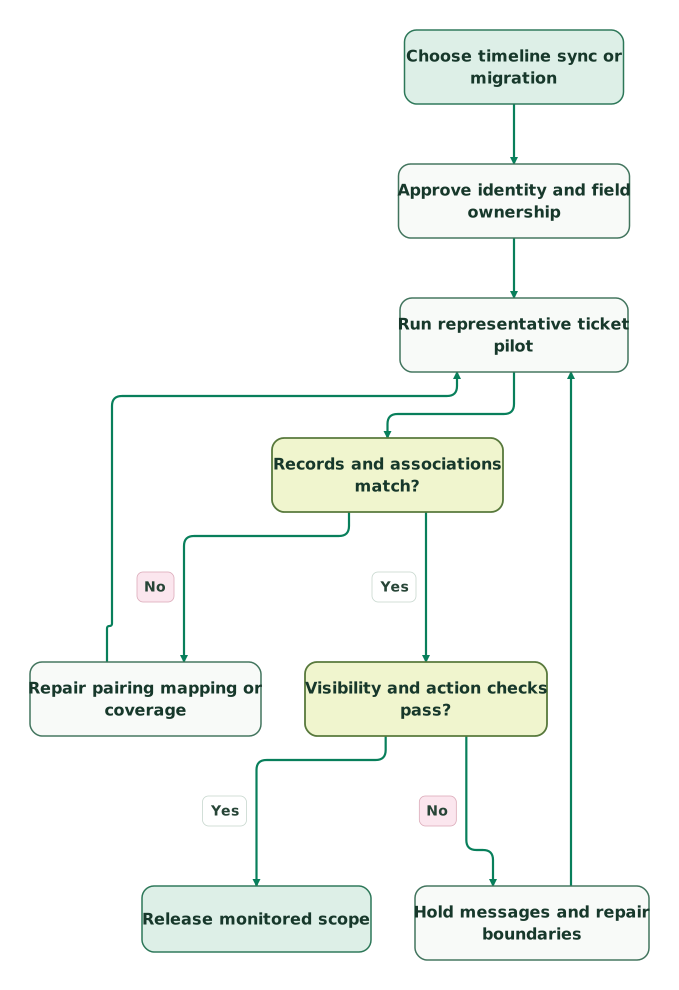
Read diagram as text
- Choose timeline sync or migration to Approve identity and field ownership.
- Approve identity and field ownership to Run representative ticket pilot.
- Run representative ticket pilot to Records and associations match?.
- Records and associations match? to Repair pairing mapping or coverage: No.
- Repair pairing mapping or coverage to Run representative ticket pilot.
- Records and associations match? to Visibility and action checks pass?: Yes.
- Visibility and action checks pass? to Hold messages and repair boundaries: No.
- Hold messages and repair boundaries to Run representative ticket pilot.
- Visibility and action checks pass? to Release monitored scope: Yes
How can you prove that the copied ticket data is correct?
Compare an expected ticket inventory with the destination, including identity, company and stage. A total record count cannot detect a missing record hidden by a duplicate.
The following SQLite query uses synthetic, normalized snapshots. source_key combines the source account and ticket ID. expected contains one row per in-scope source ticket; actual contains one row per distinct destination ticket. Company IDs and stages have already been mapped into the expected destination representation. These are audit inputs, not native Zendesk or HubSpot table names.
WITH expected(source_key, company_id, stage) AS (
  VALUES
    ('zd-a:101', 'company-a', 'open'),
    ('zd-a:102', 'company-a', 'open'),
    ('zd-a:103', 'company-b', 'open'),
    ('zd-a:104', 'company-b', 'open'),
    ('zd-a:105', 'company-c', 'resolved')
), actual(ticket_id, source_key, company_id, stage) AS (
  VALUES
    ('hs-1', 'zd-a:101', 'company-a', 'open'),
    ('hs-3', 'zd-a:103', 'company-b', 'open'),
    ('hs-4', 'zd-a:103', 'company-b', 'open'),
    ('hs-5', 'zd-a:104', 'company-a', 'open'),
    ('hs-6', 'zd-a:105', 'company-c', 'open'),
    ('hs-7', 'zd-a:999', 'company-d', 'open')
), paired AS (
  SELECT e.source_key,
         COUNT(a.ticket_id) AS destination_count,
         MAX(a.company_id IS NOT e.company_id) AS wrong_company,
         MAX(a.stage IS NOT e.stage) AS wrong_stage
  FROM expected e
  LEFT JOIN actual a ON a.source_key = e.source_key
  GROUP BY e.source_key
), verdicts AS (
  SELECT source_key, destination_count,
         CASE
           WHEN destination_count = 0 THEN 'missing'
           WHEN destination_count > 1 THEN 'duplicate'
           WHEN wrong_company = 1 THEN 'wrong_company'
           WHEN wrong_stage = 1 THEN 'wrong_stage'
           ELSE 'matches'
         END AS first_action
  FROM paired
  UNION ALL
  SELECT a.source_key, COUNT(a.ticket_id), 'unexpected_source'
  FROM actual a
  WHERE NOT EXISTS (
    SELECT 1 FROM expected e WHERE e.source_key = a.source_key
  )
  GROUP BY a.source_key
)
SELECT source_key, destination_count, first_action
FROM verdicts
ORDER BY source_key;| Source ticket | Expected verdict | Repair decision |
|---|---|---|
zd-a:101 | matches | Identity, company and stage match in this snapshot |
zd-a:102 | missing | Inspect eligibility, pairing, queue and failed records |
zd-a:103 | duplicate | Resolve the two destination records before downstream counting |
zd-a:104 | wrong_company | Repair the relationship before account workflows use it |
zd-a:105 | wrong_stage | Investigate mapping, stale data or an overwrite |
zd-a:999 | unexpected_source | Check scope, source namespace and the completeness of the expected inventory |
The query returns the first repair category, so rerun it after each correction. Its null-safe IS NOT comparisons are SQLite syntax. Validate the inputs first: expected keys and destination ticket IDs must each be unique and non-null. Every source key must be present, and expected company/stage values must be known. Hold unresolved expectations for review; a missing destination company or stage becomes a mismatch. Compare snapshots taken at compatible points in the sync cycle.
This query does not test comments, access permissions, freshness or the connector's matching algorithm. Add those checks to the pilot. If a ticket is intentionally excluded, record the reason in the expected-inventory process rather than hiding a mismatch after the report runs.
For an account-level example, suppose two contacts at one company have one unresolved ticket each. The expected unresolved count is two. Solving one should reduce it to one; a duplicate destination record must not leave it at two. Reconcile on the source ticket identity before aggregating by company, and keep unresolved or stale associations visible as unknown coverage.
What should you monitor after launch?
Monitor failed and excluded records, source freshness, incorrect relationships and the downstream action that consumes the data. “Connected” does not prove that a particular ticket is current.
Data Sync exposes In sync, Failing and Excluded record groups, with failure details and targeted reruns. Its filters limit initial admission; already paired records continue following their mappings. A later filter change is not a removal or access-revocation procedure. Data Sync health and filter behaviour.
Set an acceptable delay for each use case. An account-planning report can tolerate a different delay from a workflow deciding whether to contact a customer during an incident. Preserve source observation time separately from the time a connector last ran, and pause time-sensitive actions when the source is stale or incomplete.
Keep a small set of recurring acceptance cases:
Checklist
- A new ticket reaches the intended contact and affected company.
- A changed email preserves the intended paired identity.
- Similar company names do not merge unrelated accounts.
- A solved, reopened or follow-up case follows the approved status model.
- Public replies and private notes retain their intended visibility.
- A duplicate or replay does not create another ticket or customer message.
- Excluded and archived records have explicit coverage decisions.
- An expired connection or failed record produces an actionable alert.
- Account-level reports reconcile to distinct source tickets.
- A rollback stops future writes without pretending that past writes were undone.
Start a repair with one reproducible mismatch and its source/destination IDs. Broadly restarting a sync before understanding the cause can make diagnosis harder and repeat the same bad mapping at scale.
Martechdevs' CRM and lifecycle implementation service can define the object contract, repair the mapping and validate the customer workflow. Bring one account with an incorrect ticket history to the $99 martech audit so the scope begins with a concrete operating problem.
Keep reading
Browse all CRM & Lifecycle guides
 CRM & Lifecycle
Zendesk Implementation: What Goes Wrong and How to Fix It
Fix Zendesk routing, fields, macros, CRM sync and AI handoffs. Includes the 2027 AI agent migration dates, AI billing checks and a launch checklist.
Jafrin Akter AloLast updated 15 min read
 CRM & Lifecycle
Salesforce to HubSpot migration: plan, field mapping and cutover checklist
Plan a Salesforce to HubSpot migration: phases, a field mapping template, load order, Smart Transfer limits, reconciliation checks and a safe cutover.
Jafrin Akter AloLast updated 21 min read
 CRM & Lifecycle
HubSpot implementation: a phased plan, template and launch checklist
Implement HubSpot in five phases: scope, data model, migration, integrations and launch. Includes a plan template, a worked example and a go-live checklist.
Jafrin Akter AloLast updated 22 min read
Customer support automation
See the implementation scope, deliverables and acceptance checks.
Questions people ask
Can sales reply to Zendesk tickets directly from HubSpot?
Do not assume a visible ticket event or synced record creates a supported reply channel. Check the exact connector and action required, including public versus private visibility and the user credited with the response. If a custom write-back is needed, give it its own permission, deduplication and outcome checks. Keep one clear owner for customer replies so two systems do not send competing answers.
Can we keep Zendesk for support while HubSpot owns sales?
Yes. Define Zendesk as the owner of the support workflow and use HubSpot for the commercial context it needs. Select the connector by the actual destination records and history required, then map only approved fields. Test account-level reporting across several requesters, and ensure sales workflows respond to current support evidence rather than assuming every visible ticket has already been resolved.
Does Smart Transfer automatically bring every archived ticket across?
Do not assume complete archived coverage from a successful transfer of recent tickets. The ongoing Data Sync listing excludes archived tickets, while Smart Transfer has separately supported objects and additional history. Inventory archived records and test the selected migration route with known examples. If another export or API path is required, include its identity mapping, visibility and reconciliation work in the migration scope.
Will disconnecting an app reverse the records it already created?
Treat disconnection as a control over future activity, not a general undo. Decide separately what should happen to copied records, associations, notes and workflow effects. Preserve a migration or change ledger, review any product-specific revert capability and test recovery with a bounded sample. Deleting records indiscriminately can remove legitimate edits made by CRM users after the original sync.
Why do source and destination ticket counts match while reports disagree?
Equal totals can conceal different records, duplicate tickets offsetting missing ones, wrong company relationships or incompatible status mappings. Compare distinct source ticket identities before aggregating by account. Then inspect the report's population, exclusion rules and observation time. A contact timeline also answers a different question from an account-level unresolved-ticket report, so verify which underlying records the report actually reads.
Sources
- Zendesk: Support for HubSpot integration.
- HubSpot: Zendesk Data Sync listing.
- HubSpot: Connect and use Data Sync.
- HubSpot: Smart Transfer setup.
- HubSpot: Record matching.
- HubSpot: Association mapping.
- Zendesk: Custom ticket statuses.
- Zendesk: Creating and updating tickets.
- HubSpot: Smart Transfer supported objects and history.
- Zendesk: Archived-ticket access.

Written by
Jafrin Akter AloData Engineer and Co-founder at Martechdevs and Growth and Analytics Partners
Jafrin writes practical guides to marketing technology, customer data, analytics and AI workflows. Martechdevs is a Growth and Analytics Partners company.