
Salesforce Lead Conversion: Field Mapping, Campaigns and Duplicate Checks
Salesforce lead conversion connects a qualified Lead to an Account, a Contact and, optionally, an Opportunity. Plan the destination records and field mappings before converting. Existing populated fields can retain older values, campaign membership and primary campaign source mean different things, and a successful conversion does not prove that the new deal kept its form answers or advertising context.
On this page
What happens when you convert a Salesforce Lead?
For the Business Account workflow covered here, conversion creates or selects an Account and Contact, and can create or select an Opportunity. The source Lead remains a converted record. Salesforce's native conversion action also supports a no-opportunity path. Convert qualified leads.
| Record | What conversion establishes | What to verify |
|---|---|---|
| Lead | Conversion status and references to destination records | The original Lead ID and conversion links remain in your audit |
| Account | The selected or newly created commercial account | Correct legal/customer entity, owner and protected values |
| Contact | The selected or newly created person record | Correct person, account association and acquisition fields |
| Opportunity | An optional new or existing deal | Intended deal, source context and no accidental extra pipeline |
The Lead fields IsConverted, ConvertedAccountId, ConvertedContactId, ConvertedOpportunityId and ConvertedDate provide the crosswalk. The last is a date, not a timestamp. Lead field reference.
Converted Leads remain available for reporting. Users who need to view or edit the converted records need the applicable access, including Salesforce's View and Edit Converted Leads permission. Their disappearance from the ordinary working list does not mean that the source record was deleted. Converted-lead access.
An unmapped custom answer can remain on the converted Lead while being absent from the operating records. Check related evidence separately: Salesforce attaches files and notes to the associated records, but completed Sales Engagement cadence tasks do not appear on their Activity Timelines. Related-record handling.
This guide owns the conversion boundary. Use the Salesforce implementation checklist for the broader release and the account merge guide for repairing confirmed duplicate accounts.
How do you convert a lead without choosing the wrong destination?
Choose the account, person and deal deliberately before confirming the conversion. A familiar company name or shared domain is a candidate match, not proof that two records represent the same customer.
For the native action, verify Convert Leads plus the required Create/Edit access on Leads, Accounts and Contacts. Creating an Opportunity needs Create access; selecting an existing one needs Edit access. Conversion permissions.
- Open the qualified Lead and select Convert.
- Choose the verified existing Account or create the intended new one.
- Choose the appropriate existing Contact or create the new person record.
- Choose the new or existing Opportunity, or the no-opportunity option when there is no deal to create.
- Confirm the conversion, then inspect the resulting IDs and fields.
Salesforce's Lightning conversion window can offer existing Opportunities; the help page specifies up to 20 matching Opportunities in that selection list. That UI limit is different from an API batch limit. Confirm that the chosen record belongs to the right commercial process. Native conversion procedure.
Record the intended target IDs and owner before an automated or consequential conversion. The returned Account, Contact and Opportunity IDs can refer to existing records as well as new ones; their presence alone does not prove that three new records were created. LeadConvertResult fields.
Keep request responsibility separate from Account ownership. An existing customer asking about an expansion may need a new sales task or deal without transferring the customer to the form's current assignee. The lead-routing guide covers that precedence decision.
How do you map custom Lead fields to Account, Contact and Opportunity?
Create compatible target fields, then configure the Lead field mapping and test both new-record and existing-record conversions. Standard fields have predefined mappings; custom form answers and attribution fields need an explicit destination.
In Lightning, open Setup → Object Manager → Lead → Fields & Relationships → Map Lead Fields. Select the destination fields and save. Salesforce requires Customize Application to change the mappings. A custom Lead field can map to Account, Contact and Opportunity fields simultaneously in Lightning. Custom field mapping.
Use a mapping contract that explains why each field belongs on its target. The following names are illustrative custom fields, not built-in Salesforce attribution properties.
| Lead field | Example target | Meaning to preserve |
|---|---|---|
Submission_Id__c | Opportunity Acquisition_Submission_Id__c | The particular request selected for this deal |
UTM_Source__c | Opportunity Acquisition_UTM_Source__c | Source captured for that selected request |
Captured_GCLID__c | Contact Captured_GCLID__c and Opportunity Acquisition_GCLID__c | A convenient person-level value and the deal's selected evidence have separate policies |
Requested_Use_Case__c | Opportunity Requested_Use_Case__c | What this buyer asked about, rather than a company-wide status |
For the text fields, choose target lengths at least as long as the source and validate the longest permitted value. Salesforce imposes type-specific rules: numeric, currency and percent mappings require matching length and decimal places; lookup mappings must point to the same object. Do not map a formula as though it were a writable snapshot field. Mapping compatibility rules.
Custom mapping requires the current Apex Lead Convert engine; the older PLSQL conversion implementation does not support it. This is a native platform setting, distinct from writing your own Apex automation. If the expected mapping or conversion options are missing in a long-running org, have the administrator verify that engine before rebuilding the fields.
Do not assume the Lead’s record type becomes the target record type. Salesforce’s UI considerations refer to the converting user’s defaults, while its API guide refers to the new owner’s defaults. Check the actual conversion route, target record types and permitted picklist values in the pilot. UI defaults, API defaults.
Do not treat a hidden target field as proof that it cannot receive a mapped value. Salesforce's mapping guidance says Apex Lead Convert can populate fields that have field-level security settings. Review the mapping's purpose, then test both the resulting data and who can see it. A successful data transfer is not permission to widen its audience.
Why can an existing Contact keep an older source value?
Native conversion generally adds mapped data to empty Account and Contact fields without replacing populated values. That is useful for protecting established customer records, but it can surprise a team expecting every new Lead's latest form context to become the Contact's value. Existing-record behavior.
Consider this fictional test. A Contact already stores TEST_OldCase in Captured_GCLID__c. A new Lead has submission request-42 and TEST_NewCase, and is converted into that Contact with a new Opportunity. The expected result can legitimately be:
| Evidence | Expected value in this test | Reason |
|---|---|---|
| Existing Contact click field | TEST_OldCase | Native mapping preserves the populated field |
| New Opportunity's selected submission | request-42 | This deal has its own acquisition record |
| New Opportunity's acquisition click | TEST_NewCase | It follows the selected request, not the Contact's older convenience field |
Those markers are synthetic and must stay out of production advertising uploads. The GCLID preservation guide covers capture and exact-value handling before the Lead reaches this point.
The conversion API has a specific overwriteLeadSource option for the target Contact's standard LeadSource field. It requires a specified Contact ID and defaults to false. It is not a switch for overwriting arbitrary custom UTM or GCLID fields. API overwrite option.
If an Opportunity already has its selected acquisition record, decide whether a later request is another touch, a new deal or an approved change to that selection. Preserve repeated submissions in a related request record or controlled ledger when one field cannot express the history. Define the writer and overwrite rule through the CRM property-ownership contract.
What happens to Campaign Members and Primary Campaign Source?
Campaign membership follows the person into the Contact, while Primary Campaign Source is a single Opportunity field. Neither is the same thing as a custom UTM value or a stored click ID.
When the Lead and an existing Contact belong to the same campaign, Salesforce uses the status further along in that campaign's lifecycle. Its documented example retains Responded over Sent. Reconcile campaign, person and status; do not expect the old Lead and Contact memberships to remain two independent marketing responses. Campaign conversion behavior.
For an Opportunity created during conversion, the most recently associated campaign becomes Primary Campaign Source when the Lead has several campaigns. This can happen even when the converting user cannot access that campaign. Most recently associated is not a guarantee of first touch, last ad click or causal influence. Standard conversion mappings.
Test a Lead with two campaign memberships and an existing Contact already marked Responded in one of them. Verify the resulting memberships and statuses, then inspect the Opportunity's primary source separately. Your acquisition-policy owner should approve the meaning of that field before a dashboard uses it to allocate credit.
There are other standard-field exceptions. Salesforce says Email Opt Out and Do Not Call are not updated when a Lead converts into an existing Contact. Review the actual permission and suppression evidence before downstream activation; do not assume conversion applied the Lead's latest contact preference automatically. Standard-field exceptions.
How do you avoid duplicate Accounts during conversion?
Resolve the business identity before conversion and test the actual conversion path's duplicate behavior. Selecting an existing verified Account is different from creating a new Account and hoping a later cleanup will merge it safely.
Check customer identifiers, account hierarchy and the Contact's intended association. A parent company and subsidiary can share a domain while holding separate contracts. When several plausible targets remain, route the Lead for review instead of choosing the first result.
Salesforce's conversion process can show matches from standard fields initially and additional custom-field matches on confirmation. Custom duplicate-warning text does not appear in the conversion experience, and cross-object duplicate rules are not triggered there. Behavior depends on Apex Lead Convert, Duplicate Management and the relevant validation settings. Conversion-specific duplicate controls.
Have the administrator inspect Lead Settings → Require Validation for Converted Leads. Salesforce says lookup filters are ignored during conversion when that setting is off, so test the setting alongside your intended relationship constraints. Validation-setting behavior.
In an API conversion, an existing contactId must be associated with the specified accountId. If the Lead is queue-owned, supply an appropriate user owner: Accounts and Contacts cannot be owned by that queue. Preserve the intended owner for existing records rather than using conversion as an accidental ownership transfer. Conversion request rules.
This article's examples use Business Accounts. With Person Accounts enabled, Lightning converts a Lead without a Company value to a Person Account; Company-bearing Leads follow the Business Account path. Person Accounts and Contacts to Multiple Accounts need their own relationship fixtures. Do not apply a simple one-company/one-contact acceptance test to those configurations without adapting it. Person Account and relationship rules.
The Account chosen here can become the commercial customer used by a Salesforce Stripe integration. A conversion that selects the wrong company can therefore damage billing context even if its field mappings are technically correct.
Should conversion be manual, Flow-driven or automatic?
Use manual conversion while identity or opportunity decisions require judgment; automate only after those decisions have explicit rules and a tested exception path.
| Route | Useful fit | Control before expansion |
|---|---|---|
| Native Convert action | A salesperson must choose an existing customer or deal | Reviewed targets and a repeatable readback |
| Flow-assisted process | Guided decisions plus repeatable post-conversion work | A supported conversion action, fault handling and the actual execution context |
| API or Apex automation | A defined population with unambiguous targets | Per-Lead results, bounded batches and safe recovery from unknown outcomes |
Flow can orchestrate a reviewed invocable Apex action. Salesforce exposes methods annotated with @InvocableMethod to Flow and other action consumers. A developer can use Database.convertLead inside that action; separately creating Account and Contact records is not a substitute for completing the native conversion. Apex actions, Apex conversion reference.
For follow-up automation, trigger on the transition to IsConverted = true, resolve the returned destination IDs and handle a null Opportunity ID. Do not recreate request-history records or tasks every time someone edits a converted Lead later. Review the action's class access, sharing and database execution mode rather than assuming all routes run with identical permissions.
Keep the limits route-specific. SOAP convertLead() accepts at most 100 LeadConvert entries per call. The Apex reference recommends a maximum of 100 per method call, warns about governor limits, and counts the method against DML statements. Neither statement promises that 100 complex conversions will fit your org's transaction work.
Choose a valid converted status from LeadStatus rather than hardcoding a label from another org. In the API, doNotCreateOpportunity=true expresses the no-deal path. Inspect every result's success, errors and destination IDs; a transport response alone is not the acceptance record. Conversion API contract.
After a timeout, inspect the source Lead and its conversion references before retrying. The conversion may already have completed. Do not manufacture another Lead or another Opportunity merely to get a successful latest attempt.
How do you verify the conversion after it finishes?
Read back the original Lead and its destination records, then compare selected fields with a written expectation. Check the native ID crosswalk and marketing-data preservation as separate gates.
This read-only SOQL shape uses standard Lead fields. Replace the illustrative Lead ID with the authorized test record and run it under the access intended for the check:
SELECT Id, IsConverted, ConvertedDate,
       ConvertedAccountId, ConvertedContactId, ConvertedOpportunityId
FROM Lead
WHERE Id = '00Q000000000001EAA'
Retrieve the referenced records and required custom fields next. Salesforce's conversion change-event documentation identifies these same conversion fields on the Lead update, which also matters when a downstream sync expects only new Lead records. Conversion change events.
The following Python helper compares local, normalized readback dictionaries. It does not call Salesforce, convert a Lead or emulate its mapping engine. The contract names the exact values that the selected test should retain; the helper only checks those values and the destination links.
def audit_readback(expected, observed):
    """Compare a declared Business Account conversion contract with readback."""
    objects = ("Lead", "Account", "Contact", "Opportunity")
    if set(expected) != set(objects) or set(observed) != set(objects):
        raise ValueError("Provide all four objects; use None for no Opportunity")
    for name in objects:
        wanted = expected[name]
        if name == "Opportunity" and wanted is None:
            continue
        if (not isinstance(wanted, dict) or not isinstance(wanted.get("Id"), str)
                or not wanted["Id"] or wanted["Id"] != wanted["Id"].strip()
                or wanted["Id"] == "#N/A"):
            raise ValueError("Every expected record needs an explicit ID")
    if expected["Lead"].get("IsConverted") is not True:
        raise ValueError("This contract is for a completed conversion")

    issues = []
    for name in objects:
        wanted, actual = expected[name], observed[name]
        if wanted is None:
            if actual is not None:
                issues.append(name + ": unexpected record")
            continue
        if not isinstance(actual, dict):
            issues.append(name + ": missing readback")
            continue
        for field, value in wanted.items():
            if field not in actual or actual[field] != value:
                issues.append(name + "." + field + ": mismatch")
            elif (type(value) is bool) != (type(actual[field]) is bool):
                issues.append(name + "." + field + ": wrong type")

    lead = observed["Lead"]
    if not isinstance(lead, dict) or lead.get("IsConverted") is not True:
        issues.append("Lead: conversion not confirmed")
    else:
        for name, field in (("Account", "ConvertedAccountId"),
                            ("Contact", "ConvertedContactId"),
                            ("Opportunity", "ConvertedOpportunityId")):
            actual = observed[name]
            target_id = actual.get("Id") if isinstance(actual, dict) else None
            if field not in lead or lead[field] != target_id:
                issues.append("Lead." + field + ": target link mismatch")
    return issues
This self-contained synthetic example represents the existing-Contact/new-Opportunity case above. The labels are local fixture IDs, not Salesforce IDs:
from audit_conversion import audit_readback

expected = {
    "Lead": {"Id": "lead-demo", "IsConverted": True},
    "Account": {"Id": "acct-existing"},
    "Contact": {"Id": "contact-existing", "AccountId": "acct-existing",
                "Captured_GCLID__c": "TEST_OldCase"},
    "Opportunity": {"Id": "opp-new", "AccountId": "acct-existing",
                    "Acquisition_Submission_Id__c": "request-42",
                    "Acquisition_GCLID__c": "TEST_NewCase"},
}
observed = {
    "Lead": {"Id": "lead-demo", "IsConverted": True,
             "ConvertedAccountId": "acct-existing",
             "ConvertedContactId": "contact-existing",
             "ConvertedOpportunityId": "opp-new"},
    "Account": {"Id": "acct-existing"},
    "Contact": {"Id": "contact-existing", "AccountId": "acct-existing",
                "Captured_GCLID__c": "TEST_OldCase"},
    "Opportunity": {"Id": "opp-new", "AccountId": "acct-existing",
                    "Acquisition_Submission_Id__c": "request-42",
                    "Acquisition_GCLID__c": "TEST_NewCase"},
}
assert audit_readback(expected, observed) == []
observed["Opportunity"]["Acquisition_GCLID__c"] = "TEST_OldCase"
assert "Opportunity.Acquisition_GCLID__c: mismatch" in audit_readback(expected, observed)
Save the helper as audit_conversion.py before running the example. For the no-opportunity case, set the expected and observed Opportunity to None and confirm a null ConvertedOpportunityId. Add your actual source fields and relationship expectations; an empty issue list does not validate fields omitted from the contract, campaign statuses, access or later automation.
How do you report on converted Leads without double counting?
Choose the unit and cohort first: converted Lead records, distinct Contacts, Accounts and Opportunities answer different questions. Conversion does not prove a new person, a new deal, a sale or a payment.
In Lightning, use Reports → New Report → Lead → Leads with converted lead information, then set Converted equals True when the intended population is converted Leads. Inspect date and owner filters before interpreting the result. Converted-lead report setup.
A report showing only converted records cannot by itself supply the denominator for a rate across all original Leads. Preserve the complete cohort for that calculation. This separate fictional cohort contains four Lead records at a fixed observation cutoff:
| Lead | Converted? | Resulting Account / Contact | Related Opportunity |
|---|---|---|---|
| L1 | Yes | A1 / C1 | O1 |
| L2 | Yes | A1 / C1 | O1, selected existing deal |
| L3 | Yes | A2 / C2 | None |
| L4 | No | None | None |
Three of four Lead records converted, giving a 75% cohort conversion rate. Those three conversions point to two distinct Accounts, two distinct Contacts and one distinct Opportunity. These counts exclude blank target IDs. Counting the two nonblank Opportunity references as two deals would double-count O1. A campaign-membership join can multiply the Lead rows again.
Use IDs and an explicitly defined population; do not deduplicate by company name, opportunity amount or a convenient row count. The Salesforce report-type guide covers relationship joins, unique counts and reporting-scope differences in more depth.
Choose Created Date for a lead-creation cohort and Converted Date for conversion activity in a period; they are not interchangeable. Salesforce's ConvertedDate uses the GMT conversion date without a time component, while CreatedDate is a datetime. Record a separate suitable timestamp if the business needs elapsed-hour analysis instead of inferring it from a date-only field. Conversion-date behavior.
What should you check when conversion or reporting fails?
Locate the first wrong state: qualification and matching, mapping compatibility, native conversion, destination values or the report's population. A fix at the last dashboard cannot repair an earlier record-selection error.
| Symptom | Check first | Evidence before retry or release |
|---|---|---|
| A mapped value is absent | Target field, type, length and existing value | New-record and existing-record tests show the intended policy |
| Another Account is proposed | Identity evidence and conversion-specific matching | A reviewed target ID or a decision to create a distinct entity |
| Opportunity creation is blocked | Required fields, validation and Opportunity Contact Role requirements | The chosen route can populate all mandatory data |
| “Unable to convert lead that is in use by workflow” | Pending workflow, scheduled work or approval | Owner-approved completion or cancellation of the blocking work |
| Converted-lead report type is missing | Report-building and object permissions | The intended user can choose and run the appropriate report |
| The report counts too many deals | Repeated Lead-to-Opportunity references and related rows | Distinct intended Opportunity IDs reconcile |
The workflow error can involve pending automation or an approval process. Review that work before cancelling it; deleting a pending action merely to force conversion can remove a legitimate customer follow-up. Workflow-related conversion error.
Salesforce also warns that required custom fields on Opportunity Contact Role can block Opportunity creation during conversion because there is no Lead-to-contact-role field mapping to populate them. Treat that as a model or process decision, not permission to discard a required control. Conversion constraints.
For reporting, the official permission guide lists report-building permissions and access to the participating objects; Lead and Opportunity Read access affect whether the converted-lead type appears. Grant the access the role needs rather than broad administrator rights. Converted-lead report permissions.
What should pass before conversion is automated?
Automate only when the target choice, field policy and downstream evidence pass for the cases your sales process actually creates.
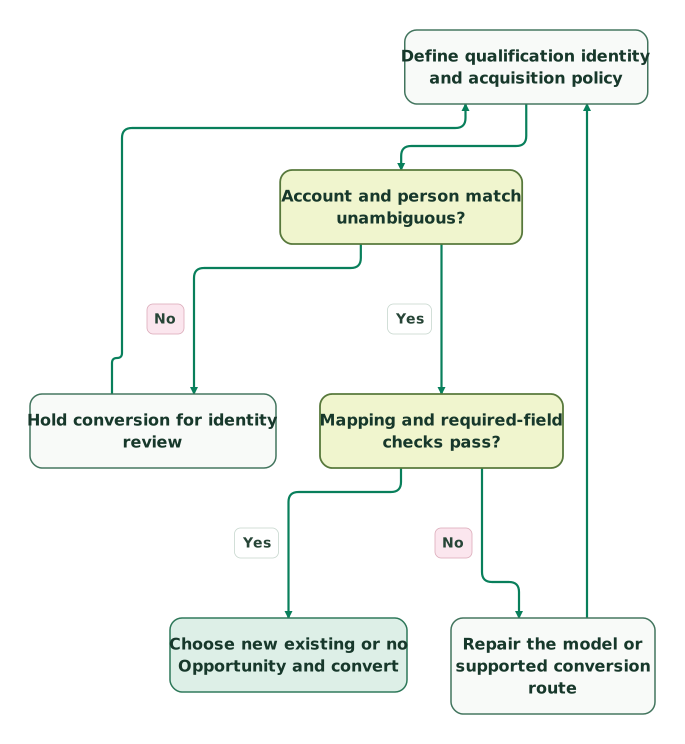
Resolve identity and mapping before conversion
The conversion step continues into outcome resolution in the next view. These are unchanged connections from the full source workflow.
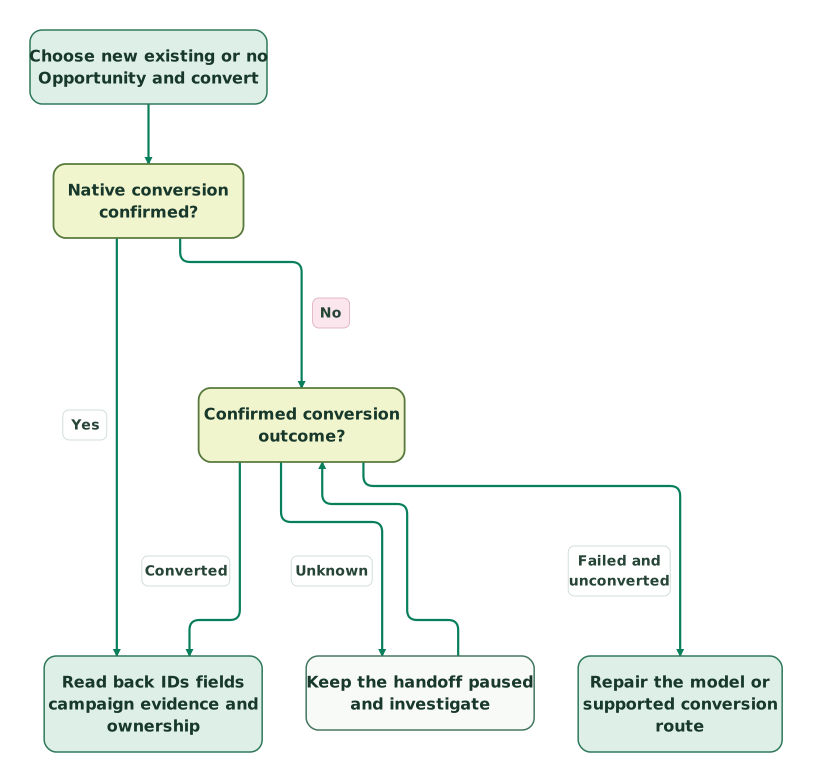
Resolve the conversion outcome before retrying
A failed and unconverted outcome returns to the preflight repair view. An already converted Lead goes to readback without a second conversion.
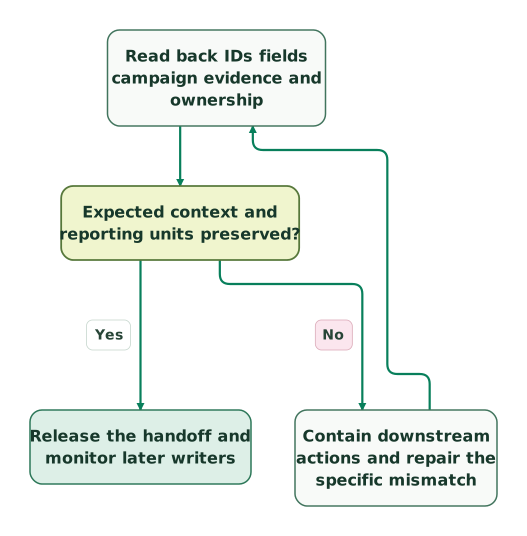
Read back context before releasing the handoff
This loop repairs the specific mismatch after conversion; it does not reverse the conversion or authorize a blind retry.
Read diagram as text
- Define qualification identity and acquisition policy to Account and person match unambiguous?.
- Account and person match unambiguous? to Hold conversion for identity review: No.
- Hold conversion for identity review to Define qualification identity and acquisition policy.
- Account and person match unambiguous? to Mapping and required-field checks pass?: Yes.
- Mapping and required-field checks pass? to Repair the model or supported conversion route: No.
- Repair the model or supported conversion route to Define qualification identity and acquisition policy.
- Mapping and required-field checks pass? to Choose new existing or no Opportunity and convert: Yes.
- Choose new existing or no Opportunity and convert to Native conversion confirmed?.
- Native conversion confirmed? to Confirmed conversion outcome?: No.
- Confirmed conversion outcome? to Read back IDs fields campaign evidence and ownership: Converted.
- Confirmed conversion outcome? to Repair the model or supported conversion route: Failed and unconverted.
- Confirmed conversion outcome? to Keep the handoff paused and investigate: Unknown.
- Keep the handoff paused and investigate to Confirmed conversion outcome?.
- Native conversion confirmed? to Read back IDs fields campaign evidence and ownership: Yes.
- Read back IDs fields campaign evidence and ownership to Expected context and reporting units preserved?.
- Expected context and reporting units preserved? to Contain downstream actions and repair the specific mismatch: No.
- Contain downstream actions and repair the specific mismatch to Read back IDs fields campaign evidence and ownership.
- Expected context and reporting units preserved? to Release the handoff and monitor later writers: Yes
An unknown conversion outcome must be inspected before the retry branch is used. If the Lead is already converted, continue its readback; do not issue a new conversion. A still-unconverted snapshot alone does not prove that a timed-out request has finished; resolve the request state and retry ownership first. A data-preservation failure after conversion also needs targeted repair, because native lead conversion cannot be reversed.
Checklist
- Qualification and account/person matching rules are explicit.
- Existing target IDs and the new/existing/no-opportunity decision are recorded.
- Custom field types, lengths and mapping destinations are compatible.
- New-record and populated-existing-record cases both pass.
- Request-level attribution stays attached to the correct commercial outcome.
- Campaign memberships, statuses and primary source are checked separately.
- Contact preferences and downstream activation follow the approved policy.
- Native conversion results and destination readback agree.
- Reports use a declared cohort, date basis and distinct record unit.
- A named owner can contain automation, investigate errors and repair mappings.
For a new process, request a detailed Salesforce implementation scope with representative new-customer, existing-customer and no-opportunity cases. The useful outcome is a conversion that sales can use and marketing can still explain.
Keep reading
Browse all CRM & Lifecycle guides
 Tracking & Attribution
GCLID Tracking: Capture the Click ID and Keep It Through Your CRM
Keep Google click IDs through redirects, consent, forms and CRM changes. Map HubSpot or Salesforce fields, test each handoff and verify conversion delivery.
Jafrin Akter AloLast updated 14 min read
 CRM & Lifecycle
Salesforce Implementation Checklist: From Scope to a Working Release
Plan a Salesforce rollout with owners, migration rehearsals, permissions, integration tests, UAT, cutover and recovery gates before approving the release.
Jafrin Akter AloLast updated 14 min read
 CRM & Lifecycle
Salesforce Report Types: Why Records Disappear and Totals Change
Choose Salesforce report types that keep the right records. Fix child filters, blank counts and export totals with worked examples and clear acceptance checks.
Jafrin Akter AloLast updated 12 min read
Salesforce consulting
See the implementation scope, deliverables and acceptance checks.
Questions people ask
Can Salesforce convert a Lead without creating an Opportunity?
Yes. Choose the no-opportunity path when conversion should establish the customer and person without opening a deal. For an API conversion, doNotCreateOpportunity=true expresses that choice. Your post-conversion automation must handle a null Opportunity reference, and reporting must not interpret every converted Lead as a new opportunity or a completed sale. Conversion API.
Can you undo a Salesforce lead conversion?
Salesforce does not provide a native reverse-conversion operation. Preserve the original Lead and destination IDs, then repair an incorrect relationship or field through a controlled process. Creating another Lead does not undo the Account, Contact, Opportunity, campaign or automation effects of the first conversion. Review the affected records before any compensating action. Converted-lead behavior.
Why does a converted Lead still appear in reports?
The converted Lead remains a source record with conversion flags and destination references, so it can still participate in Lead reporting. That is useful for acquisition cohorts and conversion analysis. Check the report's Converted filter, date field and intended unit instead of deleting the Lead to remove it from a dashboard. Converted-lead reporting.
Does Primary Campaign Source identify the first marketing touch?
Not necessarily. For an Opportunity created from a Lead with multiple campaigns, Salesforce applies the most recently associated campaign as the primary source. That association order is not a first-touch rule or proof that the campaign caused the deal. Keep the campaign history and any chosen submission-level attribution policy explicit before using the field to allocate credit. Campaign mapping.
Should an existing customer's new Lead create another Account?
Usually the decision starts with the existing commercial relationship, not the newest form submission. Select the verified Account when it represents the same customer, then decide whether the new request needs a new Contact, Opportunity or follow-up task. Keep separate subsidiaries and legal customers separate when the evidence requires it. A shared domain alone is not a sufficient matching rule.
Sources
- Salesforce: Convert qualified Leads
- Salesforce: Lead field reference
- Salesforce: View and edit converted Leads
- Salesforce: LeadConvertResult
- Salesforce: Map custom Lead fields
- Salesforce: Custom mapping compatibility
- Salesforce: Considerations for converting Leads
- Salesforce: convertLead API
- Salesforce: Standard Lead conversion mappings
- Salesforce: Apex actions
- Salesforce: Apex Reference Guide
- Salesforce: Conversion change events
- Salesforce: Report on converted Leads
- Salesforce: Workflow-related conversion error
- Salesforce: Converted-lead report permissions

Written by
Jafrin Akter AloData Engineer and Co-founder at Martechdevs and Growth and Analytics Partners
Jafrin writes practical guides to marketing technology, customer data, analytics and AI workflows. Martechdevs is a Growth and Analytics Partners company.