
Salesforce Report Types: Why Records Disappear and Totals Change
A Salesforce report type determines the records and fields a report can use. Choosing Accounts with Opportunities can produce several rows for one account and omit accounts without opportunities. Choosing Accounts with or without Opportunities changes that population again. Before fixing a chart or adding a formula, decide what one row represents, which records must remain visible and what the total should count.
On this page
What does a Salesforce report type control?
A Salesforce report type controls the available records, fields and object relationships. Salesforce supplies standard types, while administrators can define custom types for additional objects or relationships. A report's name is only its label; “All Customers” can still be built on a type that excludes customers without a particular child record. Report type reference
Separate these choices when discussing a report with its owner:
| Choice | What it decides | Question to settle |
|---|---|---|
| Report type | Available objects, relationships and fields | Which records can participate? |
| Filters | The qualifying population within that structure | Which dates, owners, stages and related-record conditions apply? |
| Format and grouping | How the results are organized | Does the reader need details, groups, a matrix or separate blocks? |
| Aggregation | The meaning of a count or amount | Are we counting accounts, opportunities, products or distinct field values? |
Tabular reports show a list; summary reports add row groupings and subtotals; matrix reports group by rows and columns. Salesforce also supports joined reports, where separate blocks can use different report types and filters. These are presentation choices layered onto the selected data. Report formats, joined report blocks
For an existing Lightning report, open Edit and inspect the report type displayed beside the report title. Record that type with the filters and intended metric before troubleshooting. Find a report's type
How do “with” and “with or without” change the rows?
A “with” relationship requires a matching child record. A “with or without” relationship keeps a parent even when no child matches, leaving child fields blank. When a parent has several matching children, the detail can contain several rows for that parent. Salesforce's report-type relationship guide explains these as inner-join and left-outer-join relationships.
Use this synthetic dataset to make the intended population explicit. All four accounts and their opportunities are assumed visible to the test user, with no additional date or ownership restrictions.
| Account | Related opportunities | What the example tests |
|---|---|---|
| Aster | One Closed Won and one open | Mixed matching and nonmatching children |
| Birch | One open | A child exists, but none is won |
| Cedar | None | A parent without children |
| Delta | One Closed Won | A parent with one qualifying child |
An Accounts-only view contains four accounts. Accounts with Opportunities produces four opportunity-detail rows across three accounts: Aster appears twice, Birch once and Delta once. Accounts with or without Opportunities produces five detail rows across four accounts because Cedar remains with blank opportunity fields.
Those are different questions. “How many accounts do we have?” and “How many opportunities belong to our accounts?” need different counts, even when the same people read both reports.
The primary object also sets the starting population. An Accounts-based report cannot recover an unrelated contact simply by adding contact fields. If the job is to find contacts with no account, start from the contact population and apply the appropriate absence condition. Check actual relationships when the same objects can connect through several paths, such as an opportunity's account versus its contact roles.
Why can a child filter leave an account with blank fields?
In a custom “with or without” report type, a child-field filter can preserve the parent while hiding nonmatching child details. Salesforce explicitly documents that parents with no children and parents whose children fail the filter can both appear with dashes in the child columns. A dash therefore does not establish that no related record exists. Child-filter and grouping behavior
Apply a Closed Won opportunity filter to the synthetic Accounts-with-or-without-Opportunities population:
| Account | Opportunity detail that remains | Interpretation |
|---|---|---|
| Aster | Its won opportunity | An open opportunity also exists but fails the child filter |
| Birch | Blank | Its open opportunity fails the child filter |
| Cedar | Blank | It has no opportunity |
| Delta | Its won opportunity | Its only opportunity qualifies |
This result contains four accounts and two qualifying opportunities. It does not mean all four accounts have won business, and the two blank rows do not mean both accounts lack opportunities.
The following self-contained SQLite query models that simplified relationship. The stage condition belongs in the join, preserving parents without a matching won opportunity. These synthetic labels are local fixture identifiers; this is SQL for understanding the population, not a SOQL command for Report Builder.
WITH accounts(account_id) AS (
  VALUES ('Aster'), ('Birch'), ('Cedar'), ('Delta')
), opportunities(opportunity_id, account_id, stage) AS (
  VALUES ('opp-a1', 'Aster', 'Closed Won'),
         ('opp-a2', 'Aster', 'Open'),
         ('opp-b1', 'Birch', 'Open'),
         ('opp-d1', 'Delta', 'Closed Won')
), visible_rows AS (
  SELECT a.account_id, o.opportunity_id
  FROM accounts AS a
  LEFT JOIN opportunities AS o
    ON o.account_id = a.account_id
   AND o.stage = 'Closed Won'
)
SELECT COUNT(*) AS detail_rows,
       COUNT(DISTINCT account_id) AS accounts,
       COUNT(opportunity_id) AS matching_opportunities
FROM visible_rows;
The output is four detail rows, four accounts and two matching opportunities. Moving the stage predicate into a final WHERE clause would remove the blank-child rows and answer a different question. Actual Salesforce results also depend on the chosen report type, selected fields, filters and user access; use the four cases as acceptance records in the report you are building.
When should you use a cross filter instead?
Use a cross filter when the question asks whether a parent has or lacks qualifying related records, while the output should remain a parent list. Salesforce supports WITH and WITHOUT cross filters and child subfilters. For example, an Accounts report can select accounts with Opportunities whose Stage meets the chosen condition. Cross-filter setup
| Question about the synthetic accounts | Population condition | Expected account list |
|---|---|---|
| Which accounts have won business? | WITH Opportunities; Stage equals Closed Won | Aster and Delta |
| Which accounts have no won business? | WITHOUT Opportunities; Stage equals Closed Won | Birch and Cedar |
| Which accounts have no opportunities at all? | WITHOUT Opportunities; no stage subfilter | Cedar |
The last two questions require different actions. Birch may need help closing its existing deal; Cedar needs a first opportunity. Combining them under “no opportunities” gives the sales team an inaccurate work list.
In Lightning, start with the relevant parent report, open Filters, add the cross filter, choose the related object and then add the child condition. Keep the parent report's normal scope and date filters explicit. Salesforce allows up to three cross filters and five subfilters per cross filter; ordinary filter logic applies to field filters rather than cross filters. Cross-filter limits
Cross filters require a supported edition: Enterprise, Performance, Unlimited or Developer. Check report-editing permissions if the option is missing. In Lightning, an existing cross filter still affects results even though it does not appear in the run page's Filters panel. Open the report builder to inspect it. Cross-filter availability and visibility
Which count should you trust when a parent appears several times?
Trust the count whose unit matches the decision. Detail-row count, distinct account count and distinct opportunity count can all be correct at the same time. Name the unit beside the number so a manager cannot mistake four opportunity rows for four customer accounts.
Salesforce's Show Unique Count option counts distinct values in a supported column, with a maximum of three such counts per report. Nulls displayed as a dash count as one distinct value, and Lightning table dashboard widgets do not support unique counts. Unique-count behavior
Choose a stable record identifier where the report exposes a suitable field. A count of distinct Account Name values can collapse two separate accounts that happen to share a name. A renamed account can also complicate comparisons across exported snapshots. Our CRM data hygiene guide explains why record identity needs its own control.
For the filtered example, the child identifiers are opp-a1, blank, blank and opp-d1. A unique-value count that includes the blank category is three; the number of actual matching opportunities is two. SQL's COUNT(DISTINCT opportunity_id) excludes NULL, so do not assume a database distinct count and Salesforce's displayed unique count use the same null rule.
Write acceptance expectations for both the records and the counts. If the account list is correct but the headline number is not, the repair may be an aggregation or null-handling change rather than a different report type.
Why can a report total differ from its spreadsheet export?
Salesforce's Smart Totaling can count a repeated parent amount once in a report summary, while a spreadsheet sum of repeated detail rows adds it several times. Salesforce documents this difference for opportunity amounts grouped through products, including a dashboard table-component exception. Check the actual report and destination widget rather than assuming every surface applies identical aggregation. Smart Totaling and exported totals
Consider this separate synthetic USD example. Two distinct opportunities each have an amount of USD 1,200. The first has two product lines; the second has one.
| Opportunity | Product line | Repeated opportunity amount, USD | Product total price, USD |
|---|---|---|---|
| Deal A | Product 1 | 1,200 | 700 |
| Deal A | Product 2 | 1,200 | 500 |
| Deal B | Product 3 | 1,200 | 1,200 |
The opportunity-level total is USD 2,400. Summing the repeated opportunity column in a flat export produces USD 3,600. Summing the product total-price column produces USD 2,400 for these inputs. Use product-level value when the business question is product contribution; use one verified record per opportunity when the question is deal value.
SUM(DISTINCT amount) is also wrong for this example: it returns USD 1,200 because the two genuinely different deals have equal amounts. Deduplicate by the correct record identity, then aggregate its value. Before doing that in an export, verify that repeated rows for an opportunity agree on currency and amount; conflicting snapshots need reconciliation.
For a product-family dashboard, do not distribute the full opportunity amount to every family and assume the families will sum to the deal total. Select an actual line-level amount or define an allocation rule. Preserve that choice in the metric definition and in the export consumers use for finance reconciliation.
Why can hiding details or changing the user change the result?
Report results can depend on relationship references, filters and the running user's access, so reproduce the exact report configuration before comparing counts. Salesforce documents cases where hiding details removes the only remaining reference to a related object and changes the effective relationship requirement. That particular behavior excludes the custom “with or without” dynamic but can affect “with” relationships. Show Details and record counts
Keep the comparison narrow: the same report, filter values, date field, date range, user and detail setting. Record one missing example and one correctly included example. A screenshot of two different grand totals gives an administrator much less to investigate than those two record identities and their expected inclusion rules.
| Symptom | Check first | Evidence that resolves it |
|---|---|---|
| A specific opportunity is absent | Report relationship and required related record | Whether the expected relationship exists |
| A whole period disappears | Selected date field and range | The source value evaluated by that filter |
| One user sees fewer results | Actual access, report scope and role context | The same examples run under the intended user |
| Child columns show dashes | Optional relationship and child filters | Whether children are absent or merely fail the filter |
| Detail and summary counts differ | Selected fields, grouping, summaries and Show Details | Which relationship references remain in each configuration |
Salesforce's missing-record checks also identify child fields, built-in ownership filters, role context and time-zone differences as possible contributors. Follow the specific report type's behavior; broadening access to make a number larger is not a substitute for identifying the intended population. For a permission investigation, use the Salesforce field-access checks alongside the report test.
How should you create or change a custom report type safely?
Create a custom report type only when the existing types cannot express the required population and fields. Keep its design in development while testing, and review dependent reports before changing an established relationship.
In the Enhanced Custom Report Type Builder, the user needs Manage Custom Report Types. Setup → Report Types → New Custom Report Type lets the administrator choose the primary object, description, category and availability. The primary object cannot be changed after saving. In Development limits use to users with that management permission; Deployed makes the type available more broadly. Enhanced builder
In Essentials Edition, the builder only offers the required-child association. Confirm that the available relationship can preserve the population you need before designing an optional-child report. Relationship availability
- Define the business question and the expected unit of one row.
- Choose the primary object and list records that must remain visible without children.
- Add only the required relationships and fields, using the appropriate required or optional child association.
- Build the mixed-child, nonmatching-child and no-child cases before accepting a count.
- Run the report with the intended users and compare the detail, summary and destination dashboard or export.
- Deploy only after the inclusion rules and totals pass, with an owner for future changes.
Changing relationships affects existing reports built on the type. Deleting a custom report type also deletes its reports and leaves dependent dashboard components with errors. Use a replacement and migration plan when the primary object or business meaning changes. Edit and deletion effects
To find dependencies, Salesforce describes a custom report type whose primary object is Reports, filtered by the target Report Type. That inventory only shows reports the reviewing user can access; other users' private reports are absent. Ask report owners about private or exported dependencies before treating the list as complete. Report-type dependency inventory
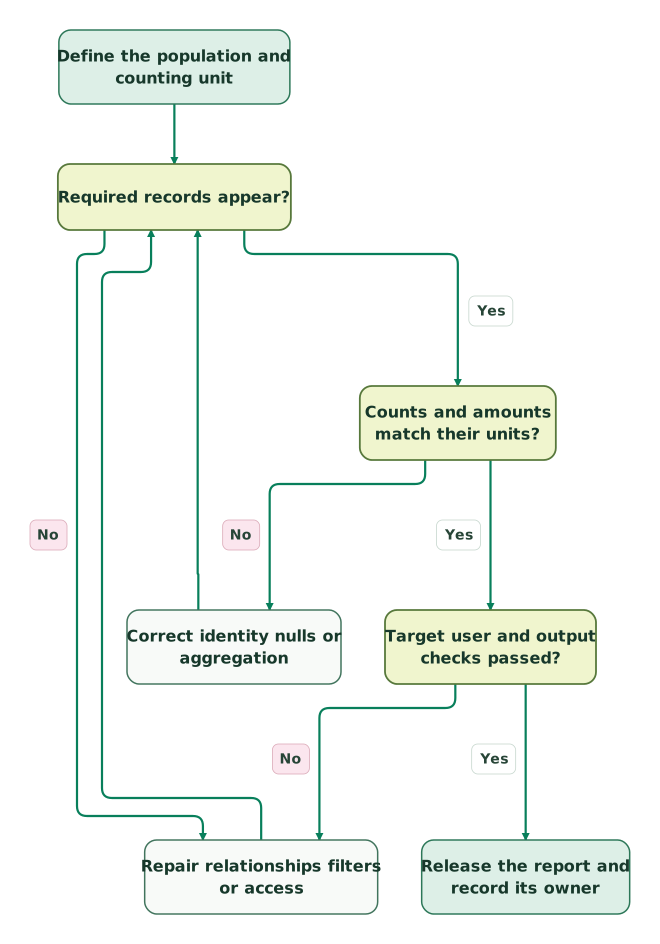
Read diagram as text
- Define the population and counting unit to Required records appear?.
- Required records appear? to Repair relationships filters or access: No.
- Repair relationships filters or access to Required records appear?.
- Required records appear? to Counts and amounts match their units?: Yes.
- Counts and amounts match their units? to Correct identity nulls or aggregation: No.
- Correct identity nulls or aggregation to Required records appear?.
- Counts and amounts match their units? to Target user and output checks passed?: Yes.
- Target user and output checks passed? to Repair relationships filters or access: No.
- Target user and output checks passed? to Release the report and record its owner: Yes
Use the following acceptance checks before a report drives a campaign, forecast or customer work list:
Checklist
- The report type, primary object and row meaning are recorded.
- No-child and nonmatching-child records have separate expected outcomes.
- WITH and WITHOUT filters answer the intended presence or absence question.
- Counts identify their entity and handle blank values deliberately.
- Monetary totals use the correct record level and currency basis.
- The intended user, dashboard widget and export each pass their checks.
- Dependent reports and owners are reviewed before a shared type changes.
When a CRM report and a warehouse dashboard must use the same metric, agree on population, identity and aggregation together. Our data warehouse and reporting work connects those definitions to the report people use, rather than leaving reconciliation to a spreadsheet at the end of the month.
Keep reading
Browse all CRM & Lifecycle guides
 CRM & Lifecycle
Salesforce Implementation Checklist: From Scope to a Working Release
Plan a Salesforce rollout with owners, migration rehearsals, permissions, integration tests, UAT, cutover and recovery gates before approving the release.
Jafrin Akter AloLast updated 14 min read
 CRM & Lifecycle
Salesforce to HubSpot migration: plan, field mapping and cutover checklist
Plan a Salesforce to HubSpot migration: phases, a field mapping template, load order, Smart Transfer limits, reconciliation checks and a safe cutover.
Jafrin Akter AloLast updated 21 min read
 CRM & Lifecycle
Salesforce Implementation Mistakes That Break Revenue Operations
Avoid Salesforce failures in identity, migration, automation and permissions. Use a worked won-deal handover and an evidence-based release checklist.
Jafrin Akter AloLast updated 10 min read
Data warehouse & CDP
See the implementation scope, deliverables and acceptance checks.
Questions people ask
Why can two different accounts count as one unique account?
A unique count measures distinct values in the selected column. If that column is Account Name and two account records share the same name, the count can treat them as one value. Use a suitable stable identifier when available, and compare the underlying records before deciding that a lower count means duplicate records were removed.
Does deploying a report type give everyone access to its data?
Deployment makes the custom report type available beyond its development audience; data access and report access still need their own checks. Test the intended user's visible records and fields in the resulting report. Keep that test separate from an administrator's ability to configure the type, because configuring a relationship does not establish the audience's access to every related record.
Can I change the primary object after saving a custom report type?
Salesforce does not allow the primary object to be changed after the report type is saved. Create an appropriate replacement, identify the reports that rely on the old type and migrate them deliberately. Recheck filters, available fields, relationships and totals because a report built from a different starting object can represent a different population.
Will a joined report match every contact to every opportunity?
A joined report presents blocks with their own report types, fields and filters, grouped through available common fields. That structure does not establish a business relationship between each contact and each opportunity. If the question needs opportunity contact roles or another explicit association, use that relationship and test its coverage before interpreting a shared account grouping as proof of involvement.
Can a unique count fix a duplicated revenue total?
A unique count answers how many distinct field values appear; it does not repair the business meaning of a monetary sum. For revenue, identify the transaction or opportunity that owns the amount, reconcile repeated values and aggregate at that level. Equal amounts can belong to different deals, so removing duplicate amount values can understate revenue just as repeated detail rows can overstate it.
Sources
- Salesforce report type reference
- Salesforce report formats
- Salesforce joined report blocks
- Find the report type used by a Salesforce report
- Salesforce Admins guide to report relationships
- Optional-child filtering and grouping
- Salesforce cross-filter setup
- Salesforce report and cross-filter limits
- Count unique values in Salesforce reports
- Smart Totaling, report exports and dashboard tables
- Show Details and report record counts
- Salesforce missing-record troubleshooting
- Enhanced Custom Report Type Builder
- Edit or delete a custom report type
- Find reports using a report type
- Create a cross filter: editions, permissions and visibility

Written by
Jafrin Akter AloData Engineer and Co-founder at Martechdevs and Growth and Analytics Partners
Jafrin writes practical guides to marketing technology, customer data, analytics and AI workflows. Martechdevs is a Growth and Analytics Partners company.