
Gmail Salesforce Integration: Setup, Email Logging and Capture Checks
A Gmail Salesforce integration should connect the right work mailbox to the right org and create the intended CRM activity. Decide whether users will log selected messages manually or use automatic capture, then verify matching, privacy and reporting. The Salesforce panel appearing in Gmail is only the first check; the important result is the correct message on the correct record.
On this page
Email Integration Scope
Choose the email behavior before enabling additional productivity features.
| Requirement | Relevant route | Main decision | Acceptance evidence |
|---|---|---|---|
| Salesforce context inside Gmail | Gmail integration | Work account, org and user access | Expected records in the panel |
| Selected email logging | Gmail integration with Enhanced Email | User-selected record associations | Logged message on the intended record |
| Automatic email activity | Einstein Activity Capture configuration | Capture mode, exclusions and matching | Expected eligible email records |
| Existing capture deployment | Configuration inventory | Legacy capture or Sync Email as Salesforce Activity | Actual storage and reporting behavior |
| Calendar or contact sync | Separate sync scope | Direction, ownership and duplicates | Accepted event or contact sample |
Keep manual logging and automatic capture distinct in the rollout plan. A team may need either or both, but the procedure must explain who logs a message, which system creates it and how duplicate activity is prevented.
For a wider customer-data workflow, CRM and lifecycle implementation can align activity capture with record ownership, privacy and reporting. The objective is useful customer context, including clear rules for information that should remain outside the CRM.
Requirements and Access
Salesforce's Gmail integration requirements specify Google Workspace Gmail with a company domain and Google Chrome, with the latest stable browser recommended. The page also lists third-party cookie requirements. Have the organization's browser administrator assess the supported configuration; do not treat a blocked connection as permission to weaken a company-wide browser policy. Gmail system requirements.
The basic integration is available across the listed Sales, Service and Lightning Platform editions, including Professional, Enterprise, Performance, Unlimited and Developer. Optional Inbox and automatic-capture capabilities have separate entitlement and configuration requirements. Confirm the actual user's license and selected feature before including it in the rollout. Gmail setup guidelines.
Record the intended mailbox address, Salesforce username, org and environment. A user with access to several Salesforce orgs can authenticate successfully into the wrong one. Confirm a known sample record in the panel before logging anything.
Review object, record and field access for the intended user. An administrator seeing a Contact does not establish that a representative can see it. The Salesforce field permissions guide provides a sequence for investigating access at the relevant layer.
Do not add calendar and contact synchronization merely because the setup screen offers them. Each additional direction needs its own owner, matching policy and acceptance sample. Existing sync tools should be inventoried before introducing another writer to the same records.
Gmail Integration Setup
Administrator Configuration
- Confirm the supported work mailbox, browser configuration and Salesforce edition.
- Enable and review Enhanced Email for the intended logging behavior.
- In Setup, open Gmail Integration and Sync and turn on Gmail Integration.
- Review the Gmail-related Enhanced Email settings and available actions.
- Select a small group of users and sample records for acceptance.
Salesforce's setup sequence requires Enhanced Email before Gmail Integration, followed by the extension and user connection. Enhanced Email supports email records in Salesforce; it is a prerequisite for the intended logging experience. Gmail setup and activation.
The integration's publisher layout determines its available global actions, such as creating a Contact or Lead. Confirm that the selected user sees the actions required for the workflow. Removing an action from a layout and controlling underlying data access are separate configuration decisions. Gmail feature configuration.
User Connection
- Install the official Salesforce extension through the organization's approved deployment process.
- Open the intended Google Workspace mailbox.
- Connect the Salesforce account from the integration panel.
- Confirm the org and a known accessible customer record.
- Log an approved sample message to the intended record and inspect the result in Salesforce.
Salesforce supports the Gmail integration in the Chrome side panel, with onboarding from the existing integration. The enablement permission is Customize Application. A different panel position does not change the need to verify the connected org and record access. Chrome side-panel setup.
Document the panel location users should expect in the approved browser version. Avoid instructions based only on an old screenshot. Include the name of the internal owner for access and connection issues so a user does not solve a missing panel by installing an unrelated extension.
Automatic Capture Modes
Einstein Activity Capture behavior depends on the configured mode. Older deployments, or configurations without Sync Email as Salesforce Activity, can show captured email in the activity timeline without storing it as an EmailMessage record available to standard reporting and other platform tools. Einstein Activity Capture behavior.
With Sync Email as Salesforce Activity enabled, matched emails are stored as Activity/Task and EmailMessage records. They can be accessed through reports, APIs and automation, and follow the org's activity sharing. The standard records count toward data storage rather than having the legacy capture retention model. Sync Email as Salesforce Activity.
Do not make a purchasing or reporting decision from the label Einstein Activity Capture alone. Record the actual mode, enabled users and expected object-level result. If a business report depends on stored email activity, include that report in acceptance before rolling out capture to the rest of the team.
Keep message counts separate from object-row counts. One captured message can be represented in related Salesforce objects. A report that combines Task and EmailMessage records needs an explicit counting definition; adding both raw counts does not establish the number of customer emails.
For an existing deployment, treat a mode change as a migration. Review history, storage, sharing and dependent reports before assuming the new behavior applies retroactively to every message. Preserve a known sample from before and after the change so the reporting owner can explain any discontinuity.
Privacy and Matching
Agree what should be captured before connecting mailboxes. Define internal domains, excluded addresses, confidential processes and the content needed for the business use. An activity timestamp may be sufficient for one workflow, while another needs an approved message body.
The newer activity mode offers full-message or header-only capture. Header-only capture includes sender, recipients and timestamp but excludes subject and body. Internal and excluded messages are not stored as Salesforce activity through that capture route. Review older stored internal messages separately because Salesforce documents different behavior before September 2026. Capture content and exclusions.
Standard matching considers the record's standard email field. Custom email fields require appropriate matching customization. An unmatched email does not become a Task or EmailMessage record simply because it reached the mailbox. Creating a matching record affects new emails; do not assume an earlier unmatched message has been backfilled. Activity matching considerations.
Keep an ambiguous identity case in the pilot. A shared address used by several customer records should receive a deliberate association policy. The CRM data hygiene audit skill can help identify those records before the capture configuration spreads the ambiguity into activity reports.
An exclusion in Einstein Activity Capture is also not a universal block on every Salesforce email route. Salesforce notes that excluded-address settings do not apply to messages sent from Salesforce Composer or other email messaging components. Test the actual route used by the team. Capture exclusion scope.
Controlled Message Fixture
Use approved test identities and harmless content. The following hypothetical acceptance fixture describes six messages under the newer activity mode. It assumes standard matching, the stated exclusions and no custom matching flow.
| Message | Condition | Expected captured email | Additional check |
|---|---|---|---|
| A | External sender matching one Contact | One | Correct Contact and related record |
| B | Sender on the configured excluded list | None | Exclusion respected |
| C | Internal-only conversation | None | Internal domain configuration |
| D | External address with no CRM match | None | Unmatched state explained |
| E | Eligible matched email, also manually logged | Duplicate risk | One approved logging policy |
| F | Eligible matched email with an attachment | One message | Attachment handled separately |
The automatic-capture expectation is three distinct messages: A, E and F. If E is also manually logged and produces a second EmailMessage, the observed EmailMessage count becomes four for three distinct messages. The duplicate surplus is one record. Count at one defined object level for this check; do not add related Task rows to that result.
Salesforce explicitly warns that manually logging a message already synced through this mode can create duplicate timeline activity. It also states that email attachments are not synced or stored by the automatic capture route. Duplicate and attachment behavior.
For message F, inspect the intended business outcome. If the process requires an approved attachment in Salesforce, design and verify that separate route. A message on the timeline is not evidence that its attachment is available to another user.
Run the acceptance cases as the intended user roles, including a reader who should not see restricted activity. Record the message identifier, expected CRM association, actual object records and visibility result. Keep the test evidence free of unnecessary real customer content.
After repairing E's logging procedure, repeat an equivalent eligible-message test. The expected result is one captured message without a manual duplicate. Updating a training document alone does not establish that the deployed user workflow has changed.
Missing Email Diagnostics
Start with a specific message and its expected route. A missing panel, a missing association and a missing report row have different causes.
| Symptom | First check | Evidence | Next action |
|---|---|---|---|
| Panel unavailable | Approved extension and browser deployment | User and browser configuration | Resolve deployment with the administrator |
| Wrong customer context | Connected org and record access | Known sample record | Correct the account or permitted scope |
| Automatic email absent | Capture user, exclusions and matching | Sender, recipients and standard email field | Repair the relevant configuration |
| Timeline email absent from report | Capture mode and report object | Stored EmailMessage/Task evidence | Use the correct reporting model |
| Duplicate activity | Manual and automatic logging | Message identity and creation path | Apply one defined logging procedure |
| Attachment absent | Automatic-capture scope | Message and separate file evidence | Verify the approved attachment route |
For connection failures, capture the exact error and the affected mailbox, user and org. Keep authentication troubleshooting separate from record matching. Reconnecting a mailbox repeatedly will not repair a contact whose email is stored only in an unsupported custom field.
For a report discrepancy, compare one known captured message with the report's object, filters and date basis. The Salesforce report types guide explains how object relationships influence the available report population. Use the dashboard templates to separate connection health, capture exceptions and accepted activity counts.
For an email associated with the wrong customer, inspect the source record's identity and the matching rule before changing the report. A report filter can hide the symptom while leaving the underlying association incorrect.
Rollout and Operating Ownership
Expand from the pilot only after the required cases pass. Give users a short instruction for the chosen mode: when to log manually, when automatic capture handles the message and how to report an incorrect association.
Assign separate owners for Google Workspace policy, Salesforce access, capture configuration and the activity reports. One person can hold several roles, but the responsibilities should remain explicit. A mailbox authentication issue should reach the team able to resolve it, while a matching defect should reach the CRM owner.
Include employee moves and departures in the operating procedure. Review the connected mailbox, account access, captured data ownership and schedules before the user leaves. Do not assume removing the browser extension deletes existing Salesforce records or changes the organization's retention obligations.
Monitor a small stable set of acceptance cases after material changes to permissions, identity rules or capture mode. Record whether a failure affects one user, one mailbox or the entire configuration. That scope helps prioritize the repair without applying broad changes to users who are working correctly.
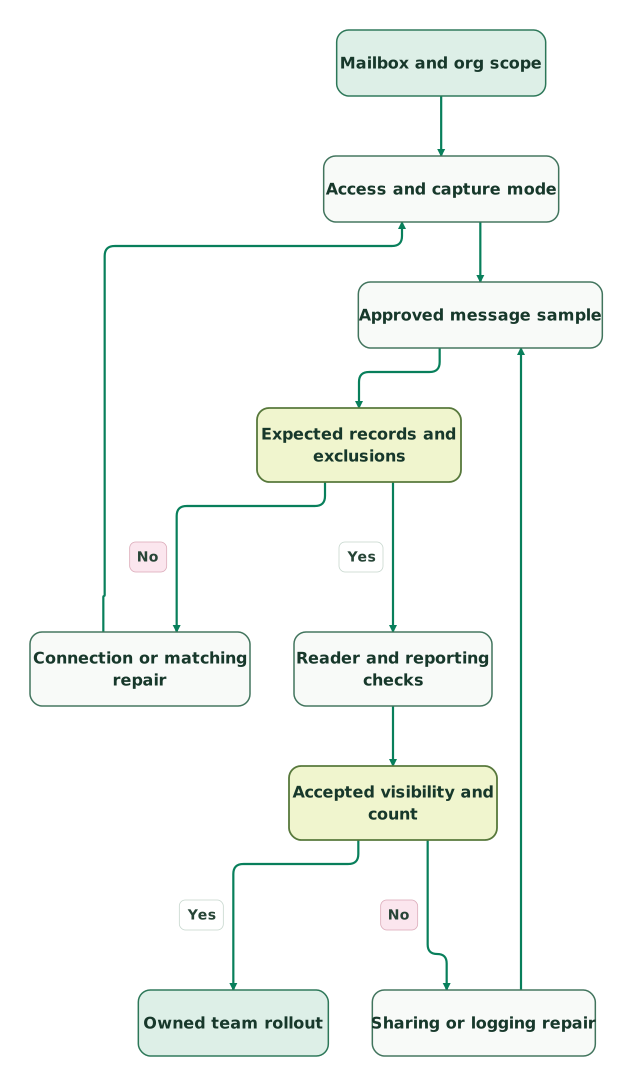
Email Acceptance Flow
Read diagram as text
- Mailbox and org scope to Access and capture mode.
- Access and capture mode to Approved message sample.
- Approved message sample to Expected records and exclusions.
- Expected records and exclusions to Connection or matching repair: No.
- Connection or matching repair to Access and capture mode.
- Expected records and exclusions to Reader and reporting checks: Yes.
- Reader and reporting checks to Accepted visibility and count.
- Accepted visibility and count to Sharing or logging repair: No.
- Sharing or logging repair to Approved message sample.
- Accepted visibility and count to Owned team rollout: Yes
The first repair branch repeats configuration and message checks. A visibility or counting repair repeats the sample as well, so the reviewer confirms that fixing a report has not introduced duplicate or incorrectly shared activity.
Gmail Salesforce Checklist
- The work mailbox, Salesforce user and org are identified.
- The browser deployment and policy meet the approved requirements.
- Enhanced Email and the intended integration actions are configured.
- The actual capture mode and licensed capabilities are recorded.
- Manual logging and automatic capture have a clear user procedure.
- Internal and excluded messages remain outside the intended capture route.
- Matching uses the approved email fields and customer relationships.
- Message counts use a defined object and duplicate policy.
- Attachment requirements have their own verified process.
- Restricted readers see only the intended activity.
- Reporting, connection errors and staff changes have named owners.
Keep reading
Browse all CRM & Lifecycle guides
 CRM & Lifecycle
Salesforce Field Permissions: 6 Checks for Missing or Exposed Data
Find missing or exposed Salesforce fields with six checks for user grants, layouts, reports, connector discovery and version-specific Apex access.
Jafrin Akter AloLast updated 12 min read
 CRM & Lifecycle
Salesforce Report Types: Why Records Disappear and Totals Change
Choose Salesforce report types that keep the right records. Fix child filters, blank counts and export totals with worked examples and clear acceptance checks.
Jafrin Akter AloLast updated 12 min read
 CRM & Lifecycle
CRM Property Ownership: Stop Integrations Overwriting Good Data
Stop CRM integrations overwriting useful data with property-level ownership, explicit blank rules and stable matching. Includes a renewal-field contract and tests.
Jafrin Akter AloLast updated 10 min read
CRM & marketing automation
See the implementation scope, deliverables and acceptance checks.
Questions people ask
Does the Salesforce Gmail panel automatically capture every message in the inbox?
No. The panel and automatic capture are separate parts of the configuration. Manual logging depends on the user's selected action, while automatic capture depends on enabled users, exclusions and matching rules. Define which route the team will use and verify a controlled message. The panel being visible does not prove that an email has been stored on a CRM record.
Why can two Salesforce orgs report different results from Einstein Activity Capture?
They may use different capture modes, permissions, matching rules or report definitions. Older capture behavior can expose timeline data without standard EmailMessage records, while Sync Email as Salesforce Activity stores reportable records. Inspect the actual configuration and a known message in each org before comparing totals. A shared feature name does not establish identical data behavior. Capture modes.
Should representatives manually log emails that automatic capture already handles?
Give representatives a specific procedure for the selected capture mode. With Sync Email as Salesforce Activity, manually logging an automatically synced email can create duplicate activity. Use a controlled message to verify the intended result, then document any approved exception. Activity reporting should identify duplicate messages rather than treating every additional timeline row as another customer interaction. Duplicate considerations.
Can a company use Gmail integration without synchronizing all contacts and calendars?
Define email, contact and calendar requirements separately. A team that needs Salesforce context and selected message logging should not expand its scope automatically to every available sync direction. Inventory existing tools first, identify the owner of each object and test the chosen behavior. This keeps the rollout focused and reduces ambiguity about which system created or changed a record.
What evidence should accompany a missing Gmail activity support request?
Provide the affected mailbox, Salesforce user and org, approximate message time, intended record and selected logging or capture route. Include the exact error when one exists and a reference to the message without unnecessary sensitive content. State whether the panel, record association or report row is missing, because each symptom points to a different part of the integration.
Sources

Written by
Jafrin Akter AloData Engineer and Co-founder at Martechdevs and Growth and Analytics Partners
Jafrin writes practical guides to marketing technology, customer data, analytics and AI workflows. Martechdevs is a Growth and Analytics Partners company.