
HubSpot QuickBooks Integration: 7 Checks Before You Trust the Sync
A HubSpot QuickBooks integration is reliable when the same customer, invoice and settlement mean the same thing in both systems. Choose the installed connector, name the system allowed to create and change each record, and test its tax, currency and payment boundaries. Then reconcile individual invoices before using a CRM status to send payment reminders, report collected revenue or trigger customer actions.
On this page
Which HubSpot QuickBooks integration are you configuring?
Identify the app and publisher before following setup instructions. HubSpot's data-sync app, Intuit's deal-to-draft route and third-party automations have different operating contracts.
| Route | Intended job | Starting requirement | What to verify |
|---|---|---|---|
| HubSpot-built QuickBooks Online data sync | Synchronize supported customer, product and invoice records | A supported QuickBooks Online subscription and HubSpot connection | Object direction, mappings, filters and financial exclusions |
| HubSpot for QuickBooks in QuickBooks Online Advanced | Bring a HubSpot deal into a draft invoice for review | QuickBooks Online Advanced and administrator access in both products | The draft approval and product-matching process |
| A workflow platform such as Zapier | Execute a selected trigger and accounting action | The workflow platform's own entitlement and permissions | Retry behavior, duplicate prevention and the exact supported action |
HubSpot's marketplace lists Simple Start, Essentials, Plus and Advanced for its app, and supports customer/contact, product and invoice sync in either direction. Intuit separately describes a QuickBooks Online Advanced route that sends deals as drafts for approval. Zapier treats QuickBooks Online as a premium app requiring a paid Zapier plan and QuickBooks administrator access. HubSpot app listing, Intuit's draft-invoice route, Zapier prerequisites
This guide concentrates on the HubSpot-built data-sync app. Do not enable another invoice creator to compensate for a missing record until you understand whether the first route already created it. Two successful automations can produce one incorrect accounting result.
If the commercial problem is broader than the connector, use the CRM and billing reconciliation guide to distinguish bookings, invoices, payments and bank settlement. Our CRM integration work starts with those ownership and acceptance decisions.
Which seven checks should happen before rollout?
Check the financial and identity boundaries before allowing the connector to influence customer-facing work. These seven checks form a practical release gate.
| Check | Evidence to collect | Failure it prevents | Accountable owner |
|---|---|---|---|
| 1. Connector and scope | Installed app, QuickBooks company, HubSpot account and enabled objects | Testing the wrong route or company | Integration owner |
| 2. Customer identity | Billing contact, customer ID and approved company relationship | Wrong customer or duplicate display name | Finance and CRM owner |
| 3. Invoice writer | Creation source and permitted edits | Two creators or a rejected financial change | Billing owner |
| 4. Product, tax and currency | Item mapping, tax representation and transaction currency | Correct-looking total posted incorrectly | Accounting owner |
| 5. Payment and credit coverage | Included payment shapes and credit applications | False overdue state or duplicated settlement | Receivables owner |
| 6. History and timing | Filters, cutoff, excluded records and observation time | Missing history mistaken for a new failure | Integration owner |
| 7. Reconciliation and action | Record-level differences and approved downstream behavior | Reminders or reporting based on incomplete data | Finance and operations |
Give each exception a source ID and next action. A green connection indicator answers whether authorization exists; it does not answer whether the billing customer or remaining balance is correct.
What should you establish before connecting the app?
Agree the integration's permitted writes with the billing owner, then verify the actual account entitlements and installation permissions. Keep the first release narrower than the full database.
HubSpot requires Super Admin or App Marketplace permissions to connect a data-sync app. Its general setup distinguishes connection from activating an object sync, and provides direction, field-mapping and conflict-resolution settings. HubSpot data-sync setup
Custom mappings require the applicable paid Data Hub entitlement; the QuickBooks setup identifies Starter or above. QuickBooks sandbox accounts cannot connect to this native HubSpot app. QuickBooks connection requirements
That testing boundary matters. Arrange a finance-approved test approach with controlled records, intended recipients and a documented cleanup procedure. A demonstration that creates an invoice in a real accounting company is still an accounting action, even if someone calls the contact “test.”
Write down which HubSpot and QuickBooks company identifiers belong together. Include the connection owner, expected recipients and any existing workflow that creates invoices or sales receipts. Export or record the relevant configuration before changing it.
How do you avoid duplicate customers and incorrect associations?
Treat the billing contact as an explicit business relationship, then verify the paired record IDs. Do not let every sales contact become a new accounting customer automatically.
HubSpot's matching process is separate from field mappings and filters. After records are paired, stored record IDs maintain the relationship. Changing an initial matching option affects unmatched records; it does not necessarily repair existing pairs. Available matching choices vary by app and object. Data-sync record matching
For QuickBooks, the specific troubleshooting guide identifies two common identity failures: an invoice's contact does not match the accounting customer's email, or the intended Display Name already exists. Company-name-based display mapping can collide when several contacts belong to the same company. QuickBooks customer-matching errors
Use a small mapping register rather than an informal email lookup:
| Relationship | Key to preserve | Decision to document | Negative test |
|---|---|---|---|
| Accounting company | QuickBooks company identifier | Which legal entity owns the transaction? | Same invoice number exists in another company |
| Billing customer | QuickBooks customer ID plus HubSpot contact ID | Which contact represents billing? | Two contacts share a company or mailbox |
| Commercial account | Approved HubSpot company relationship | Which customer account gets the context? | Contact belongs to two companies |
| Invoice | Source invoice ID plus destination invoice ID | Which record represents the same obligation? | A second creator uses the same display number |
An imported QuickBooks invoice associates with its contact's primary HubSpot company. Inspect that association before using it for company-level collections or revenue reporting. QuickBooks invoice associations
A shared billing mailbox may be legitimate, but it does not establish which subsidiary owes an invoice. Resolve the entity and currency relationship with finance before changing the key or creating another customer. For general field authority, use the CRM property-ownership guide.
Where should invoice changes be made?
Make financial changes in the system that owns the invoice and within that invoice's permitted state. A two-way integration does not make every field safely editable from either screen.
HubSpot's QuickBooks troubleshooting guidance says externally changing the line items or financial amount of a HubSpot-origin invoice can break sync. It also identifies duplicate document numbers and missing revenue-recognition service dates as separate errors. Invoice-sync error boundaries
Use that evidence to route the fix, not to bypass accounting controls. Do not renumber issued documents, remove a payment or disable revenue recognition simply to clear a connector error. Finance should approve the correction and any effect on already issued records.
HubSpot's invoice-management rules have their own restrictions. Editing finalized invoices depends on account settings; subscription and payment-link invoices have exclusions, and paid invoices using automated sales tax cannot be edited through that route. Increasing a paid invoice's total can return it to Open. HubSpot invoice editing
Document the lifecycle before enabling writes:
- Define which approved business event may create an invoice.
- Name the creator and preserve the source record ID.
- Establish who may edit the draft and finalize it.
- Route later corrections to the permitted owning system.
- Reconcile the resulting amount, customer and balance.
- Release reminders or downstream reporting only after those checks pass.
Review older paid-invoice or paid-sales-receipt workflows when enabling two-way invoice sync. HubSpot warns that invoice-origin payments can trigger another invoice unless those workflows exclude that source. Duplicate-invoice workflow warning
A practical incident record should distinguish “one payment, two invoices” from “two payments.” The corrective action is different, and automatically refunding or deleting records can make the problem harder to reconstruct.
How should products, tax and currency be validated?
Validate the accounting meaning of each line, not only the grand total. Two invoices can agree numerically while using the wrong product, tax representation or currency.
QuickBooks product sync matches by SKU and includes SKU-bearing products by default. Unmatched invoice lines can use a generated Custom Line Item product with a configured income account. QuickBooks product mapping
Before the first invoice, prepare a product crosswalk containing source SKU, HubSpot product ID, QuickBooks item ID and the accounting category finance expects. Include an intentionally unmatched item in the pilot. A fallback that lets the invoice sync is not evidence that its posting is correct.
Automated tax has additional entitlements and a distinct accounting representation. HubSpot's tax guide requires Revenue Hub Professional or Enterprise and an assigned Revenue Hub seat for account-wide availability. When its automated tax syncs to QuickBooks, it appears as a new line item; the first sync creates a HubSpot Sales Tax Payable service. Automated-tax prerequisites and QuickBooks representation
Have finance inspect that line and its account mapping. Do not add the same tax again simply because QuickBooks' usual tax field is empty.
For a non-U.S. QuickBooks company, confirm the exact regional workflow before allowing HubSpot-origin invoices. The integration guide warns about non-U.S. tax requirements, while the newer tax guide describes automated-tax capabilities in additional regions. HubSpot tax availability alone does not establish that your QuickBooks country, tax method and invoice route are supported. Connector tax limitation, HubSpot tax configuration
Currency requires a separate check. Intuit says a customer's currency cannot be changed after transactions have been recorded. Multicurrency is unavailable on Simple Start; enabling it also prevents turning it off or changing the home currency. Those are accounting-company settings, not routine sync repairs. Customer currency, Multicurrency constraints
Compare the transaction's original currency first. Keep home-currency conversion as a separate measure with its own rate and date. The multi-currency reporting guide explains why a currency label cannot repair an undefined conversion policy.
Why can HubSpot show an invoice as unpaid after QuickBooks records settlement?
Inspect the payment's shape, creation time and modifications before treating an unpaid mirror as proof of an unpaid customer. Some valid QuickBooks settlement patterns are outside the native sync's coverage.
Payments spanning multiple invoices do not sync to HubSpot. Only payments created after app connection are eligible. Editing a HubSpot-origin payment in QuickBooks can exclude it and leave the HubSpot invoice unpaid without an error. Credit applications likewise require one invoice per payment. Payment and credit-application limits
Consider a hypothetical customer who sends one USD 1,000 payment for two invoices, one for $600 and another for $400. Accounting can correctly allocate the payment while HubSpot lacks the corresponding payment mirror. A collections workflow that reads only the CRM's unpaid state could contact a customer who already paid.
Classify this as a coverage exception. Do not create another cash receipt merely to make the CRM status change. Decide with finance whether to use a supported allocation process, a controlled reconciliation field or another integration route. Keep the source payment and its allocations traceable.
HubSpot's own invoice UI also prevents applying one existing payment to a second invoice. A zero remaining obligation, a payment record and an actual bank receipt remain different evidence. HubSpot payment associations
For credit memos, preserve the applied credit separately from cash. If your normalized payment export includes credit applications, separate them before summing cash and credit columns. Otherwise a single credit can be counted twice during reconciliation.
What should a useful invoice reconciliation compare?
Compare the same obligation, currency and balance at a common cutoff, and keep settlement components separate. A total that matches after mixing cash, credit and tax is not useful evidence.
Here is a hypothetical USD-only invoice. Its figures are demonstration inputs, not a tax rule or customer project.
| Component | Amount | Meaning | Reconciliation use |
|---|---|---|---|
| Service subtotal | $1,000 | Charge before the example tax | Check the agreed products and amount basis |
| Example tax | $100 | Separate tax component | Verify it is represented once |
| Gross obligation | $1,100 | Original amount owed | Starting invoice total |
| Cash applied | $600 | Payment allocated to this invoice | Reduce the obligation once |
| Credit applied | $100 | Approved non-cash reduction | Reduce the obligation separately |
| Remaining obligation | $400 | $1,100 minus $600 minus $100 | Compare with each system's balance |
Do not treat $700 of total settlement as $700 of collected cash. Do not subtract a $100 credit again if it is already embedded in a combined payment/application figure. The records supporting each component matter more than a single Paid label.
The following read-only SQLite query compares two normalized invoice snapshots through an approved ID bridge. invoice_bridge has one unique (qbo_company, qbo_invoice_id) row and one intended HubSpot invoice ID per obligation. Each snapshot has one row per unique invoice key. Amounts are integer minor units in the stated currency, with the same amount basis and observation cutoff. These are audit tables you prepare, not native vendor API field names.
SELECT
  b.qbo_company,
  b.qbo_invoice_id,
  b.hs_invoice_id,
  CASE
    WHEN q.invoice_id IS NULL THEN 'MISSING QBO SNAPSHOT'
    WHEN h.invoice_id IS NULL THEN 'MISSING HUBSPOT SNAPSHOT'
    WHEN q.currency IS NULL OR h.currency IS NULL
      OR TRIM(q.currency) = '' OR TRIM(h.currency) = ''
      OR q.currency <> h.currency THEN 'REVIEW CURRENCY'
    WHEN q.total_minor IS NULL OR h.total_minor IS NULL
      OR q.balance_minor IS NULL OR h.balance_minor IS NULL
      THEN 'INCOMPLETE AMOUNTS'
    WHEN q.total_minor <> h.total_minor THEN 'TOTAL MISMATCH'
    WHEN q.balance_minor <> h.balance_minor THEN 'BALANCE MISMATCH'
    ELSE 'PASS'
  END AS result
FROM invoice_bridge AS b
LEFT JOIN qbo_snapshot AS q
  ON q.company_id = b.qbo_company
 AND q.invoice_id = b.qbo_invoice_id
LEFT JOIN hubspot_snapshot AS h
  ON h.portal_id = b.hs_portal
 AND h.invoice_id = b.hs_invoice_id
ORDER BY b.qbo_company, b.qbo_invoice_id;
Run a duplicate-key and missing-bridge check before this query. It assumes the bridge's customer relationship has already been approved; it does not prove customer identity, tax validity or a complete general ledger. Source-only and destination-only invoices need their own exception lists.
| Test specimen | QuickBooks total/balance | HubSpot total/balance | Expected result |
|---|---|---|---|
| Correct mirror, USD | 110000 / 40000 | 110000 / 40000 | PASS |
| Missing tax in mirror, USD | 110000 / 40000 | 100000 / 40000 | TOTAL MISMATCH |
| Missing credit application, USD | 110000 / 40000 | 110000 / 50000 | BALANCE MISMATCH |
| Same numbers, different currencies | USD 110000 / 40000 | CAD 110000 / 40000 | REVIEW CURRENCY |
Agree which exceptions block customer messages and which can be explained as timing. Retain the accounting source, reason, affected amount, owner and next check. Do not overwrite the invoice or deal value to eliminate an unexplained difference.
How should history, timing and fees affect the result?
Separate a synchronization problem from an intentional filter, incomplete history or an amount the connector never posts. Reconcile each category instead of broadening every filter until totals appear to agree.
HubSpot data sync indexes records during initial sync and scans changes afterward. Saving the sync restarts its initial phase. A filter or mapping change therefore deserves a planned comparison, not repeated save-and-retry clicks during an unexplained discrepancy. Data-sync phases
Keep a written cutoff for historical imports and an explicit list of excluded records. Test an invoice before that cutoff, one after it and one near the boundary in the account's relevant time zone. Preserve the observed time of both exports so a recent payment does not get compared with an older balance snapshot.
Processor fees do not automatically create a QuickBooks accounting expense through this sync, and a HubSpot-added credit-card fee does not sync to the QuickBooks invoice. Fee reconciliation boundaries
Assign those differences to finance's fee and settlement process. An invoice's gross customer obligation should not be replaced by the net bank payout just because the two systems display different amounts.
Use HubSpot's invoice properties, history and related records for the operational review. Its invoice tools support exports, while PDFs of invoices received through data sync are excluded from the bulk download archive. Invoice review and export scope
If sales needs a renewal-risk flag, define it from reconciled receivables and customer context. Avoid letting a delayed or unsupported payment shape automatically mark a good customer as delinquent.
What should happen before customer reminders go live?
Approve reminders only after identity, financial values and settlement exceptions pass the intended workflow. The successful creation of one invoice is the beginning of acceptance testing.
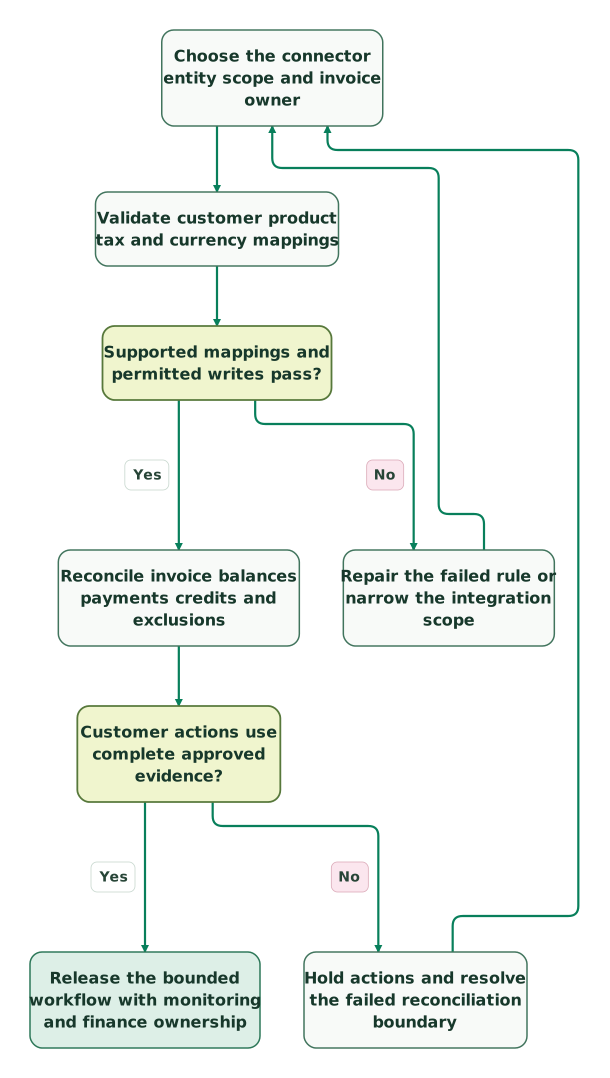
Read diagram as text
- Choose the connector entity scope and invoice owner to Validate customer product tax and currency mappings.
- Validate customer product tax and currency mappings to Supported mappings and permitted writes pass?.
- Supported mappings and permitted writes pass? to Repair the failed rule or narrow the integration scope: No.
- Repair the failed rule or narrow the integration scope to Choose the connector entity scope and invoice owner.
- Supported mappings and permitted writes pass? to Reconcile invoice balances payments credits and exclusions: Yes.
- Reconcile invoice balances payments credits and exclusions to Customer actions use complete approved evidence?.
- Customer actions use complete approved evidence? to Hold actions and resolve the failed reconciliation boundary: No.
- Hold actions and resolve the failed reconciliation boundary to Choose the connector entity scope and invoice owner.
- Customer actions use complete approved evidence? to Release the bounded workflow with monitoring and finance ownership: Yes
Checklist
- The installed connector and both company/account identifiers are recorded.
- The billing contact and paired customer relationship are approved.
- One route owns invoice creation and financial edits.
- Duplicate display names and document numbers have controlled handling.
- Product mapping and fallback posting have been inspected.
- The actual regional tax and currency route has passed acceptance.
- Multi-invoice payments and credit applications have an explicit exception process.
- Historical filters and both snapshot cutoffs are documented.
- Cash, credit, gross obligation and fees stay separate.
- Customer messages remain paused for unresolved billing evidence.
Bring the installed app, one failed invoice and the expected accounting result to the $99 martech audit, or request integration help for the mapping, reconciliation and controlled release.
Keep reading
Browse all CRM & Lifecycle guides
 CRM & Lifecycle
Salesforce to HubSpot migration: plan, field mapping and cutover checklist
Plan a Salesforce to HubSpot migration: phases, a field mapping template, load order, Smart Transfer limits, reconciliation checks and a safe cutover.
Jafrin Akter AloLast updated 21 min read
 CRM & Lifecycle
HubSpot implementation: a phased plan, template and launch checklist
Implement HubSpot in five phases: scope, data model, migration, integrations and launch. Includes a plan template, a worked example and a go-live checklist.
Jafrin Akter AloLast updated 22 min read
 CRM & Lifecycle
HubSpot Email Tracking: 8 Reasons Opens, Clicks and Logs Disagree
Fix confusing HubSpot email tracking with eight checks for logging, seats, link formats, inferred opens, privacy filters and report definitions.
Jafrin Akter AloLast updated 14 min read
CRM & marketing automation
See the implementation scope, deliverables and acceptance checks.
Questions people ask
Should every HubSpot contact become a QuickBooks customer?
No. Define which contacts represent billing relationships and qualify for the accounting workflow. Marketing subscribers, former employees and secondary stakeholders do not automatically need a customer record. Preserve the approved billing contact and accounting customer ID, then handle changes deliberately. A broad contact sync can create extra records while leaving the actual invoice recipient or legal entity unresolved.
Can changing a contact email repair an invoice attached to the wrong company?
An email change alone is not a reliable repair for an incorrect company association. Inspect the existing paired IDs, invoice customer and approved commercial relationship first. Determine which system owns the correction and whether other invoices or workflows depend on it. Repeat the affected acceptance cases afterward; do not assume the initial matching process reruns and repairs every existing record automatically.
What evidence should finance receive when a sync exception is escalated?
Provide the source and destination invoice IDs, accounting company, currency, expected amount, observed balance, cutoff and exact failure or exclusion reason. Include the relevant payment or credit allocation and any recent configuration change. State which customer action is being held and who owns the next step. That packet lets finance distinguish a real billing correction from a reporting or connector problem.
Is a successful QuickBooks connection enough to automate revenue reporting?
No. Establish which objects and periods are covered, reconcile invoices and settlements, and define what the report measures. Booked value, invoiced value, applied cash and recognized revenue answer different questions. Use the accounting team's approved definitions and retain exceptions. A connected application can provide useful operational data without being a complete or authoritative revenue-recognition model.
How should a team restart customer reminders after repairing the integration?
Reconcile the affected invoice population first, then confirm the corrected balances and customer associations have reached the system sending reminders. Review payments, credits and messages that occurred during the incident so a recovery does not repeat an action. Resume a bounded group, inspect the resulting tasks or messages, and expand only when the evidence supports the next group.
Sources
- HubSpot-built QuickBooks Online app
- Intuit's HubSpot deal-to-draft-invoice route
- Zapier QuickBooks Online prerequisites
- HubSpot data-sync phases and configuration
- QuickBooks Online connection, object and settlement boundaries
- HubSpot data-sync matching
- QuickBooks Online sync errors
- HubSpot invoice states, associations and export rules
- HubSpot automated tax and QuickBooks representation
- QuickBooks customer-currency constraints
- QuickBooks Multicurrency constraints

Written by
Jafrin Akter AloData Engineer and Co-founder at Martechdevs and Growth and Analytics Partners
Jafrin writes practical guides to marketing technology, customer data, analytics and AI workflows. Martechdevs is a Growth and Analytics Partners company.